A second factor means a stolen or guessed password is not enough to get in. FluentAuth supports three methods and applies them per role, so administrators can be required to use one while subscribers are never asked.
Methods
| Method | How the code arrives | Best for |
|---|---|---|
| Passkey | A browser prompt for your device, security key or password manager | Domain-bound device verification; see Passkeys |
| Email code | A one-time code emailed to the user’s address | Sites where everyone can read their email at login time; no app to install |
| Authenticator app (TOTP) | A six-digit code from Google Authenticator, 1Password, Authy, Microsoft Authenticator or any TOTP app | Anyone who can carry a phone; works offline and does not depend on email delivery |
A usable passkey is offered ahead of an authenticator app. Enrolled device methods take priority over email. A magic link already proves access to the mailbox, so it skips an email code but does not satisfy a required device factor.
Passkeys, authenticator-app codes, recovery codes, the enrolment list and required-role enforcement were added in FluentAuth 3.0.0. Email codes have been available since 1.0.
Settings
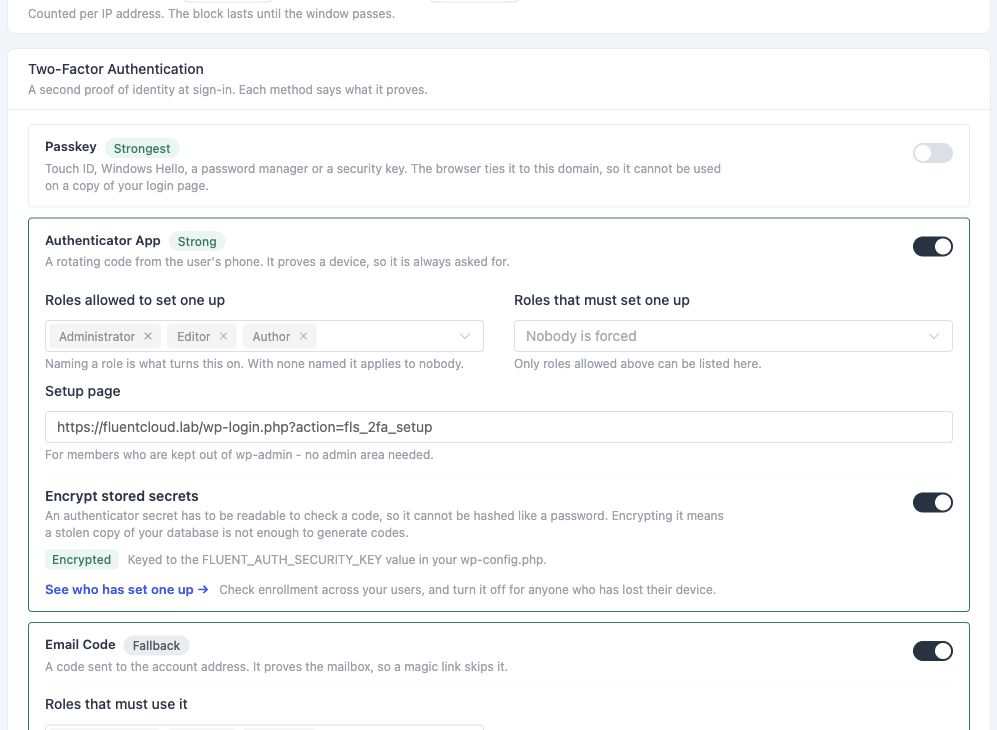
Under Settings → General Settings → Two-Factor Authentication:
| Setting | Meaning |
|---|---|
| Email Code | On or off |
| Roles that get the code | Roles that must enter an emailed code (default: Administrator, Editor, Author) |
| Authenticator App | On or off |
| Roles allowed to set one up | Roles invited to enrol an authenticator voluntarily |
| Make it required → Roles it is required for | Roles that must meet the policy; these users may enrol an enabled device method even if absent from its optional role list |
| What they can use | A passkey or the authenticator app only, or Any method, including an emailed code |
Passkeys have their own Passkeys section immediately above this one; see Passkeys. Enable the methods first, then choose required roles under Make it required, and select Save. A requirement only applies when an enabled method can satisfy the selected policy. Email codes count for the second option only when enabled for the user’s role. With every method off, there is no enforceable requirement.
A role can be in both email and authenticator lists. Users in that role get email codes until they enrol an app, then app codes.
Enrolling an authenticator
Users enrol from their own profile (Users → Profile → Two-Factor Authentication), or from
the standalone setup page at wp-login.php?action=fls_2fa_setup, which works without wp-admin
access. Enrolment is:
- Scan the QR code, or type the secret into the app by hand.
- Enter the current six-digit code to prove the app is set up.
- Save the ten recovery codes shown once. Each works one time in place of an app code.
The QR code is drawn by the plugin itself. Nothing about the secret leaves your server.
Encrypting stored secrets
An authenticator secret is the one credential FluentAuth has to be able to read back, because a code is checked by generating it. It cannot be hashed the way a password or a recovery code is. So it can be encrypted instead, with a key you keep out of the database:
- Add
FLUENT_AUTH_SECURITY_KEYtowp-config.php. Any long random string will do. - Turn Encrypt authenticator app data on under the authenticator app settings.
Existing enrolments are encrypted in place, and a copy of your database stops being enough to generate anybody’s codes. If the key later goes missing or changes, FluentAuth says which of the two happened and both are recoverable while you still have the old value. See Constants.
What the user sees
After a correct password, a second screen asks for the code. Five wrong codes end the attempt, and a pending challenge expires after ten minutes. Both outcomes are logged.
Users in Roles it is required for who lack a method satisfying the policy must complete
setup before signing in. Existing sessions are gated from admin access until they do.
A role already receiving email codes meets Any method, including an emailed code without
device enrolment; choose the device-only option to require a passkey or authenticator app. Users whose role may enrol but is not
required see a one-time nudge after login, dismissible; the fluent_auth/ask_to_set_up_totp
filter turns that off.
Managing enrolments
Settings → 2FA Enrollment lists eligible users and their enrolled device methods, searchable and filterable. Review the enrolled methods and reset the affected method for someone who has lost access. Passkeys can also be managed from the user profile.
Logins that skip the form
FluentAuth also checks application-password authentication, social logins and code that calls
wp_set_auth_cookie() directly. A headless request that needs a challenge cannot complete
that interactive step and is refused. Low-risk headless logins that do not need a challenge
remain available. A required device policy still applies to magic links and social login. To exempt a specific
integration, use the fluent_auth/enforce_2fa_on_auth_cookie filter.
WP-CLI is exempt, so wp user session create and similar still work from the server.
Recovery
- Lost the phone: use a recovery code, then reset and re-enrol from the profile.
- Lost the phone and the codes: another administrator resets you from 2FA Enrollment.
- Only administrator, lost everything: see Troubleshooting for the server-access recovery procedure.
Developer hooks
| Hook | Purpose |
|---|---|
fluent_auth/2fa_challenge_required (filter) | Require a challenge for a user whose role does not. It cannot waive one |
fluent_auth/2fa_methods (filter) | Add or remove methods |
fluent_auth/totp_enabled (filter) | Offer the authenticator app to this user, or not |
fluent_auth/totp_activated, totp_disabled (actions) | React to enrolment events |
fluent_auth/recovery_codes_generated, recovery_code_used (actions) | A set was issued, or one was spent |
fluent_auth/2fa_code_request_limit, 2fa_code_request_timing (filters) | Rate limit for emailed codes |