← All features
Security checklist

Know what needs attention, and why.

Review configuration issues, exposed files and account risks with explanations that help you choose the next step.

New in FluentAuth 3.0.

How it works

From a finding to a reviewed configuration

This is a typical checklist review. Some fixes need a manual change.

your-site.com/wp-admin/security-checklist

Checking site configuration

Account settings
Checking…
File exposure
Checking…
Access settings
Checking…
Find an issue. Understand the fix.

FluentAuth evaluates the supported configuration, file exposure and account checks.

Why it matters

A settings page is not a plan of action.

Exposed files, unnecessary access and overlooked account risks can remain unnoticed during routine maintenance. A useful review needs to explain which conditions deserve attention and why.

How it helps your site

Turn supported checks into next steps.

FluentAuth’s checklist explains each finding and offers a fix or guidance where supported. Reviewing and addressing these items can reduce specific configuration risks. Passed checks are useful evidence, not a guarantee that the site is secure.

What you gain

Know which issue to review next, what it means and how to confirm the result.

Get FluentAuth →
Inside FluentAuth

See the controls behind the experience.

New in FluentAuth 3.0.

Follow the setup guide →
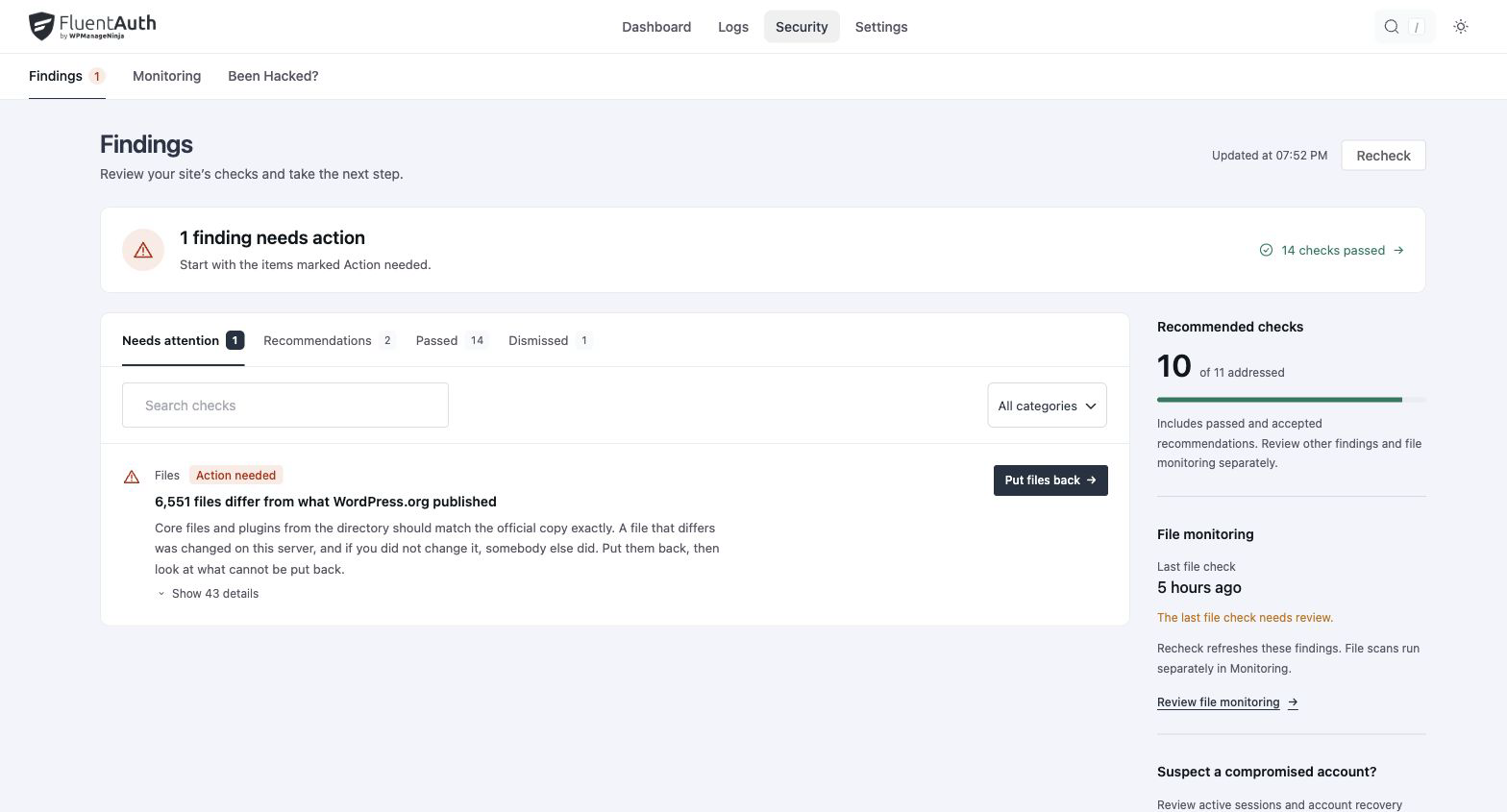
FluentAuth security checklist settings and results on a local development site.
FluentAuth security checklist settings and results on a local development site. Select the image to view it full size.

How to work through findings

  1. Open the checklist and read the explanation for an action item.
  2. Apply an offered fix or follow the guidance to make the change yourself.
  3. Recheck the result and move to the next item. Dismiss an item only when you understand why it does not apply.

Checks cover supported configuration and account risks. The checklist is not a vulnerability intelligence feed and does not automatically patch vulnerable plugins.

A useful handover for a client site

After a new build or a change of administrator, use the checklist to review the configuration together. Explain the reason for each change and keep a record of choices that depend on the site’s requirements.

Does a passed checklist mean the site is completely secure?

No checklist can establish that. Keep WordPress and extensions updated, maintain backups and review activity. Findings give you specific checks to act on, alongside those ongoing habits.

Give your next security review a clear starting point.

Open the checklist and use its explanations to make informed changes.