A hacked WordPress site almost always has a file that should not be there or a file that has
been changed: a new PHP file in wp-admin, a plugin with a line added at the top. The scanner
finds those by comparing your files with the official copies.
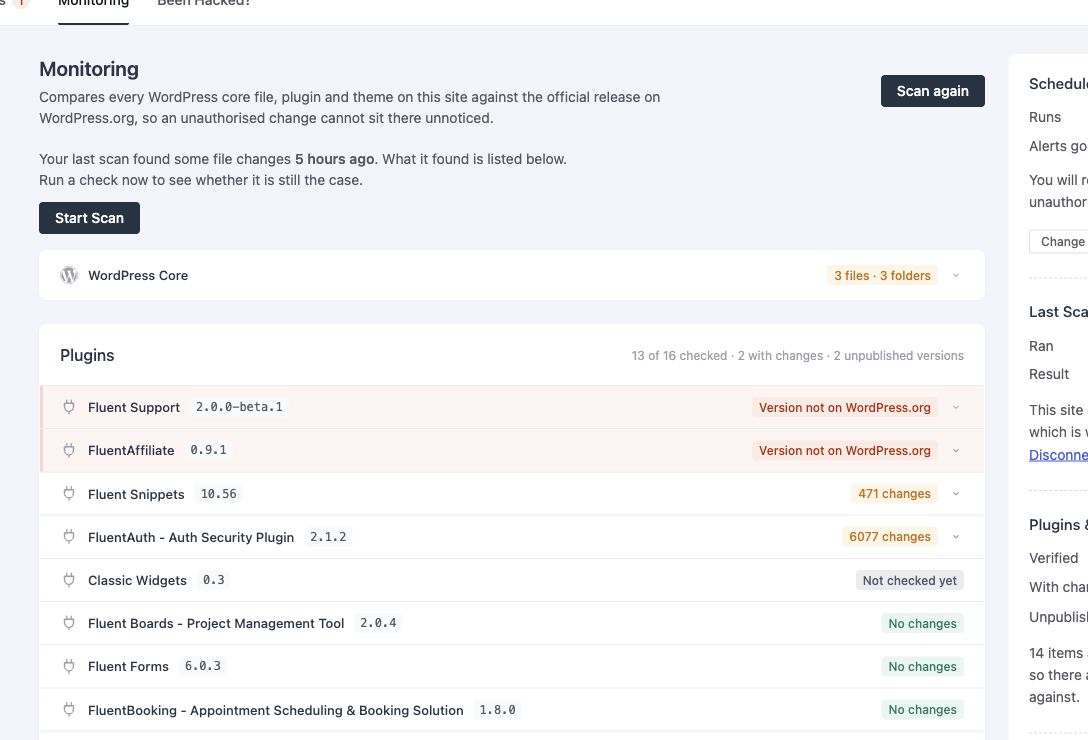
Plugin and theme comparison, the diff viewer, single-file restore and baseline snapshots were added in FluentAuth 3.0.0. Core file checking has been available since 2.0.
What it checks
| Target | Compared against |
|---|---|
| WordPress core | The checksums WordPress.org publishes for your exact version |
| Plugins from WordPress.org | The published files for the installed version |
| Themes from WordPress.org | The released zip for the installed version, downloaded and hashed |
| Premium and custom plugins and themes | Nothing the directory has. They are grouped under Premium & Custom Extensions with the reason each one cannot be verified, and can be covered by a baseline snapshot |
wp-content/mu-plugins and drop-ins | Your own baseline of what was there when you last approved it |
Findings are grouped by folder and marked New (a file that is not part of the official copy), Modified (a file whose contents differ) or Deleted (one the official copy has and your site does not).
A plugin or theme whose version was never published is flagged separately. That is a common sign the files were swapped out, so check it against the vendor before trusting it, and reinstall it from WordPress.org if it should be the public release.
Running a scan
Security → Monitoring shows the last result and a Scan again button. A scan you start yourself walks every verifiable plugin and theme in that run, a few requests at a time from your browser, so nothing has to wait.
A scheduled scan works through them in the background instead: oldest-checked first, inside a time budget on each cron run, so a site with eighty plugins is covered over a few runs without a single request timing out.
Scheduled scans
Scheduled Scanning requires the optional alerts-service connection described below. Choose Every hour, Every 6 hours, Every 12 hours or Every day on the Monitoring screen. Scans run locally through WP-Cron; the results are posted to the alerts service, which sends the email. WP-Cron depends on site traffic unless your host invokes it separately.
Manual scans do not require a connection. Once you are connected, though, a scan you run by hand is reported too, not only the scheduled ones.
Reviewing a finding
Each finding has a menu:
- View File opens the file viewer and comparison with the official copy, with added and removed lines marked in one column.
- Restore, on a Modified file, replaces it with the original for your version. Core files come from the official WordPress mirror on GitHub, plugin and theme files from the WordPress.org repository. A New file has no original to put back, so it cannot be restored; review it and delete it if it should not be there.
- Add to Ignore List stops that path being reported. It is silence, not a snapshot, so a file you ignore stays hidden however it changes later. The ignore list is on the right, with a Reset.
- Delete this file… removes a new file after a confirmation.
Restore is a one-file repair for files the official package contains. For a site with many changed or added files, the recovery screen reinstalls whole packages and quarantines what does not belong.
Registered mode
The scanner works entirely locally by default: it fetches checksums from WordPress.org and
compares on your server. Registered mode additionally sends each scan result to the
FluentAuth Alerts Service at dash.fluentauth.com, run by WPManageNinja, which emails you a
report on the interval you chose.
The form asks for your name and email. Sent with them are your site address, title and admin link, the paths of the files that differ, and a list of your plugins and themes with their versions, so a report can name the plugin involved rather than a path. The contents of a file are never sent, and neither is anything from your database. The screen lists all of this before you decide, and the privacy policy has the full statement. It is free and optional, nothing is sent until you register, and Disconnect this site on the Monitoring screen ends it.
Baseline snapshots
For plugins and themes the directory cannot verify, Take a snapshot records a hash of
every .php, .js, .phtml and .htaccess file as they are now. Later scans compare against
it. A version bump in a plugin’s header takes a fresh snapshot of that plugin automatically, so
updates do not produce noise; anything else that changes does.
Accepting a baseline finding re-takes the snapshot rather than silencing the plugin, so you keep watching it either way. Very large extensions are capped: past about twenty thousand files the rest are left out, and the passing message says so instead of implying a clean result.
What it will not catch
A scan compares files. It does not read your database, so a compromised admin account, an
injected wp_options row or a malicious cron event are for the audit log
and the findings screen to surface. And a file changed on a plugin
the directory does not have, before you took a baseline, looks like the baseline.