FluentAuth 3.0 is here
Meet FluentAuth 3.0: passkeys, authenticator apps, a redesigned admin, expanded security tools and a new website.
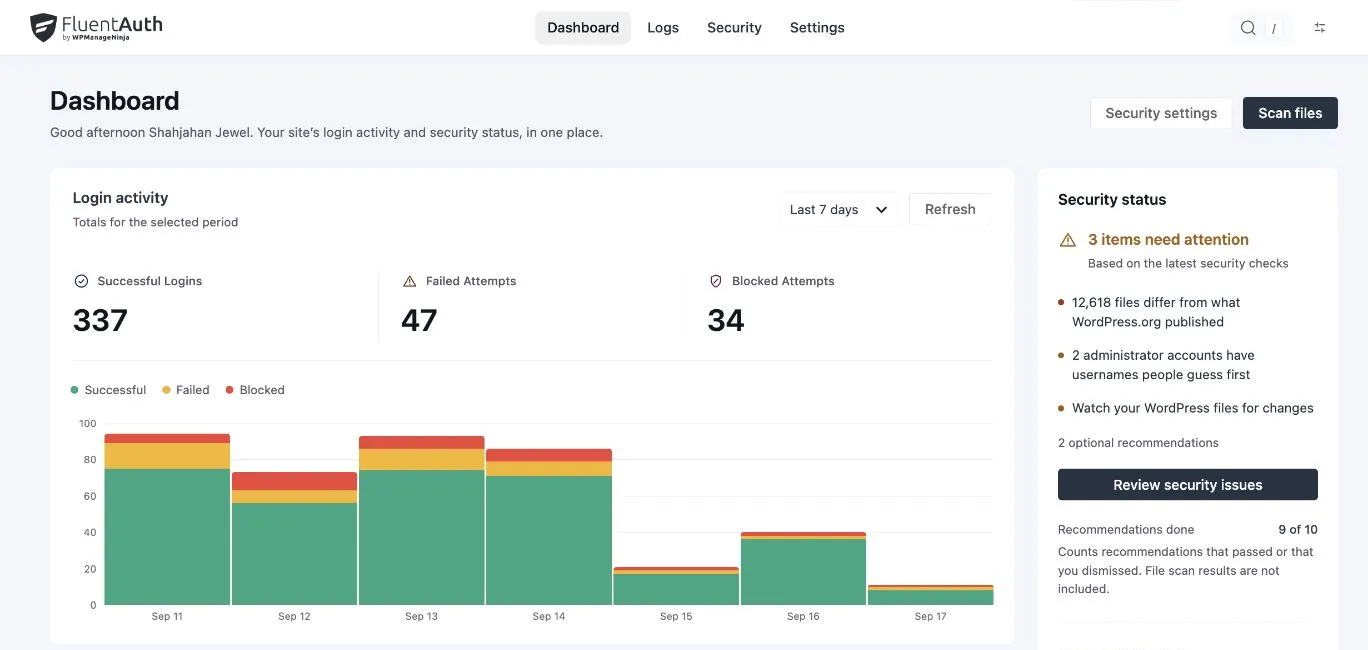
FluentAuth 3.0 is a major update to both the plugin’s security features and the way you manage them. It introduces passkeys, authenticator-app verification, a security checklist, expanded file monitoring and recovery tools, alongside a fully redesigned admin panel and a new website.
The dashboard, navigation, settings, activity log and security screens have all been reworked. The aim is straightforward: make it easier to see what is happening on your site, understand what needs attention and find the right setting when you need it.
Everything below is included in the $0 plugin. See our pricing note for what a possible future Pro version would mean.
Meet FluentAuth 3.0. Find installation and update instructions on the plugin page. The screenshots below show the new interface with local demonstration data; click any of them to open it at full size.
What is new in FluentAuth 3.0?
| New or expanded in 3.0 | What it helps you do |
|---|---|
| Fully redesigned admin panel | Move between activity, security and settings with consistent navigation and clearer controls |
| Passkey verification | Complete sign-in with a device, security key or password manager bound to your site’s domain |
| Authenticator apps and recovery codes | Add device verification, choose eligible roles and require enrolment where needed |
| IP access rules | Block known addresses, exempt selected addresses from attempt limits and restrict roles to an allow list |
| Security checklist | Review configuration issues, exposed files and account risks with an explanation and next action |
| Expanded file monitoring | Compare plugins and themes as well as core, inspect differences and keep baselines for custom extensions |
| Recovery tools | Revoke sessions, review accounts, reinstall official packages and send password-reset links |
| Site activity in the audit log | Review plugin events alongside login attempts |
| Guided setup | Review login protections, hardening and alerts before applying your configuration |
Social login, Google One Tap, magic links, login redirects, shortcodes, system emails and the login page designer were already part of FluentAuth. They remain included, with refreshed screens that fit the new admin experience.
A fully redesigned admin panel
The new interface is organised around four destinations: Dashboard, Logs, Security and Settings. Activity and security results have their own screens, while configuration lives together under Settings.
Inside Settings, a persistent sidebar takes you to General Settings, 2FA Enrollment, IP Access Rules, Social Login, Login & Signup Forms, Login Redirects and System Emails. Related controls sit together, with descriptions explaining what each choice changes.
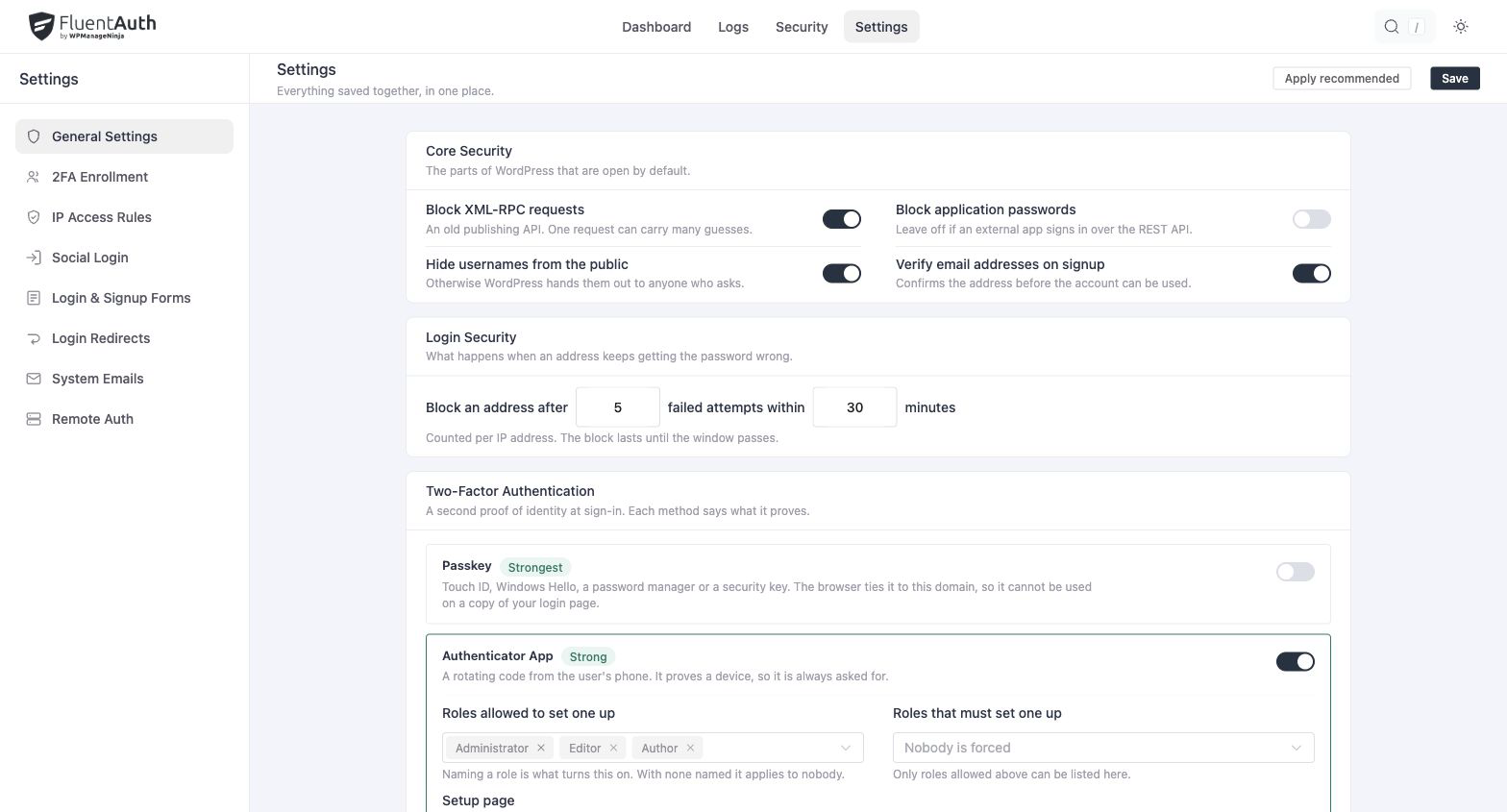
The admin also includes search and Light, Dark and System appearance options. The appearance setting applies to the admin interface; your public login page is styled separately through the login page designer.
A dashboard built around your next action
The dashboard at the top of this article brings together successful, failed and blocked login totals, an activity chart and the latest security status. Choose a date range to see the period you want to investigate, then select a total to open the corresponding log entries.
Recent activity, the busiest sources of failed attempts and a breakdown of sign-in methods help you understand how people are reaching the site. Current protection links to enrolment, monitoring and retention settings, so the summary leads back to the controls.
Passkeys and authenticator-app verification
Email verification is joined by two device-based options: Passkey and Authenticator App. Each method has its own explanation and role settings.
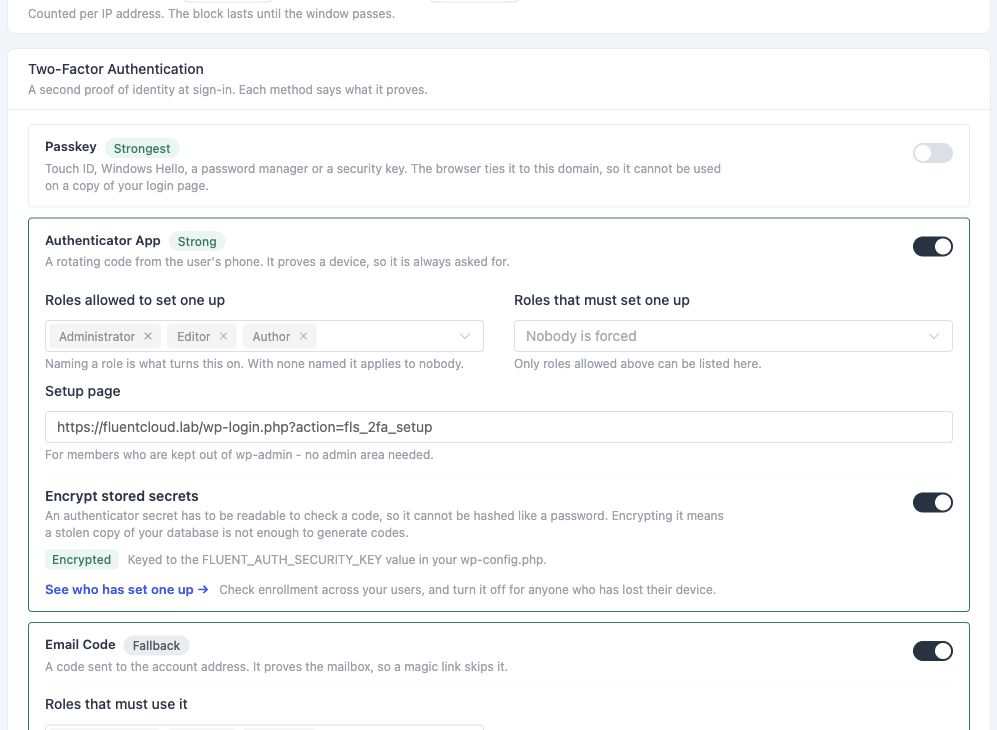
Passkeys let users complete sign-in with Touch ID, Windows Hello, a compatible password manager or a security key. The browser ties the credential to your domain, so a copied login page on a different domain cannot request it. FluentAuth uses this as a verification step in the login flow.
Authenticator apps provide rotating TOTP codes from apps such as Google Authenticator, 1Password or Authy. Choose which roles may enrol and which must set up an authenticator before using the admin area. The enrolment screen lets you review your team’s device methods and help users who have lost access.
Recovery codes provide a fallback when a device is unavailable. Before FluentAuth starts challenging an account with a passkey, that account needs a recovery route: unused recovery codes, an enrolled authenticator app or a second registered passkey.
The plugin also distinguishes the proof each method provides. A magic link already proves access to the mailbox, so another email code is skipped. A required device factor still applies.
Passkey setup → · Two-factor authentication →
IP access rules for known addresses and networks
The login attempt limit reacts to repeated failures. The new IP Access Rules screen adds controls for addresses and networks you already know about.
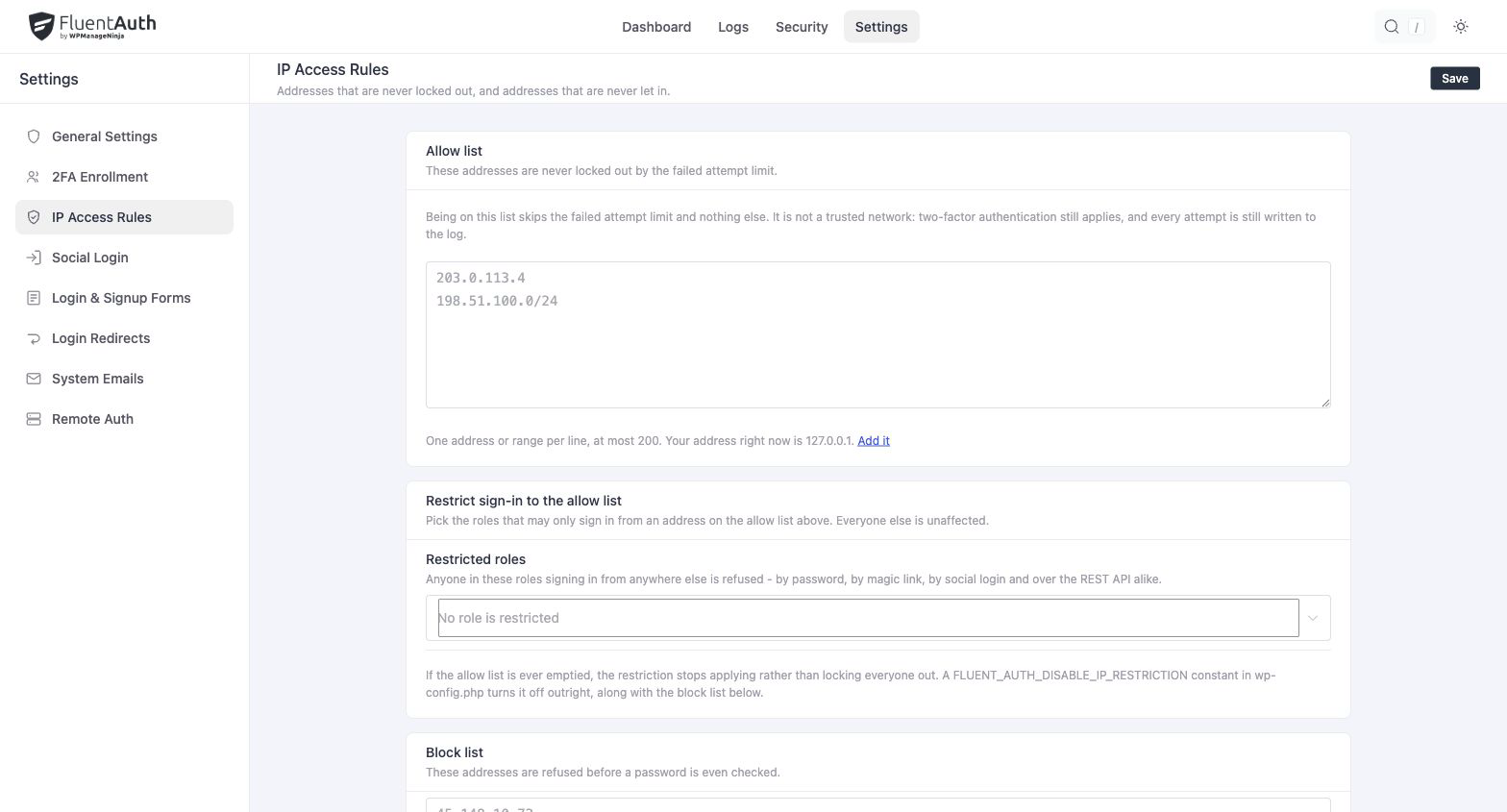
Use the block list to refuse logins from selected addresses or ranges. The allow list exempts an address from the failed-attempt limit; it does not bypass the password or a required second factor.
You can also restrict selected roles to addresses on that allow list. For example, a team may want privileged accounts to sign in only through its office connection or VPN. Sites behind a reverse proxy need the visitor-address settings configured correctly before relying on address-based restrictions.
A security checklist with explanations and actions
The new Security → Findings screen brings configuration issues and account risks into a single review list. Each finding explains the condition, why it matters and the relevant next step.
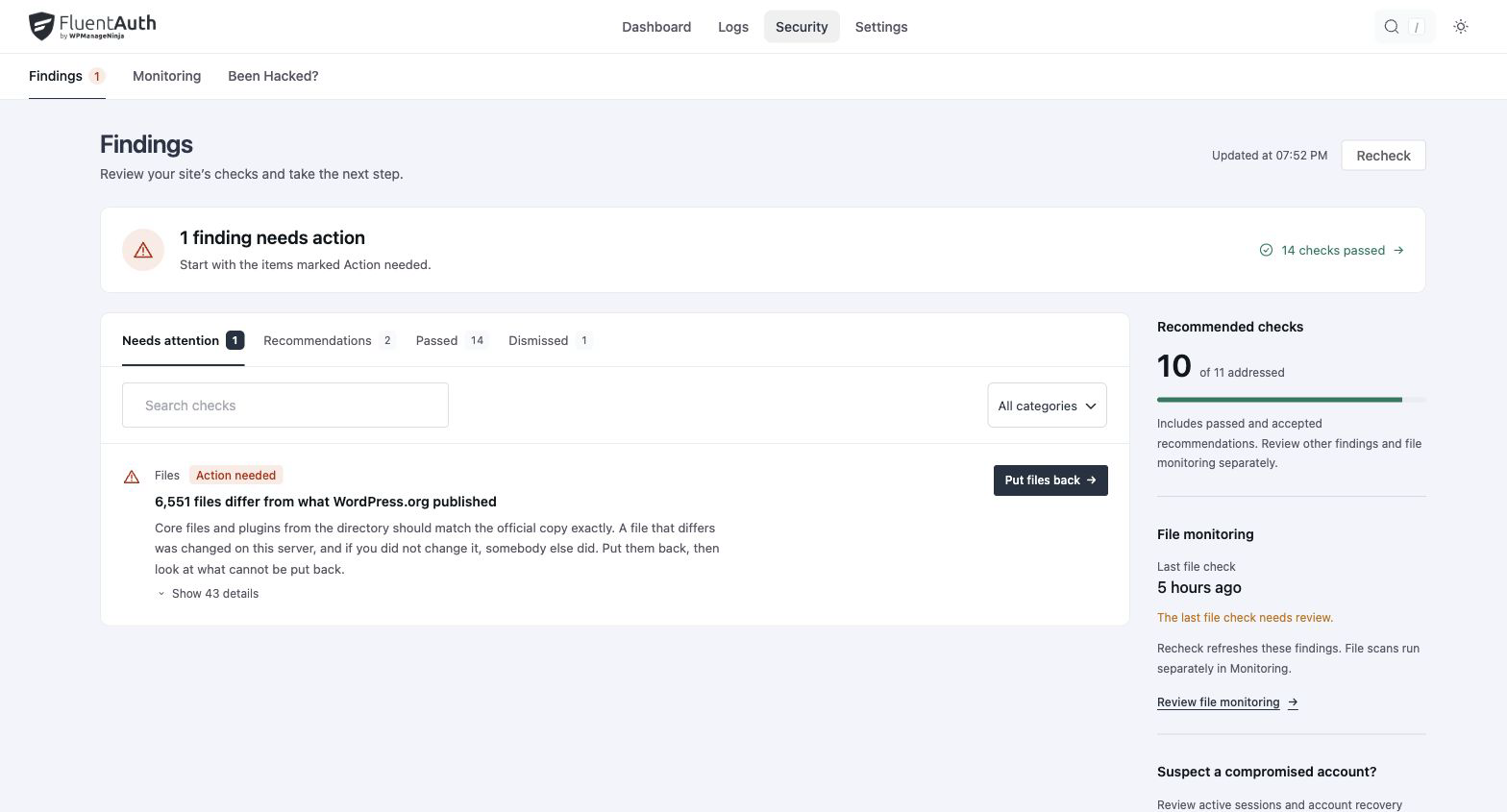
Checks cover issues such as exposed backup files, PHP execution in uploads, debug output, the dashboard file editor, unexpected mu-plugin or drop-in changes, and administrator accounts worth reviewing.
Status filters let you focus on items that need action or look through optional recommendations. You can review and dismiss a finding that is expected on your site. The number of recommended checks addressed shows progress through those checks; it is not a guarantee that the whole site is secure.
Explore the security checklist →
Expanded file monitoring, diffs and snapshots
FluentAuth has always checked WordPress core files. Version 3.0 expands that work to plugins and themes and gives you more ways to investigate a difference before deciding what to do.
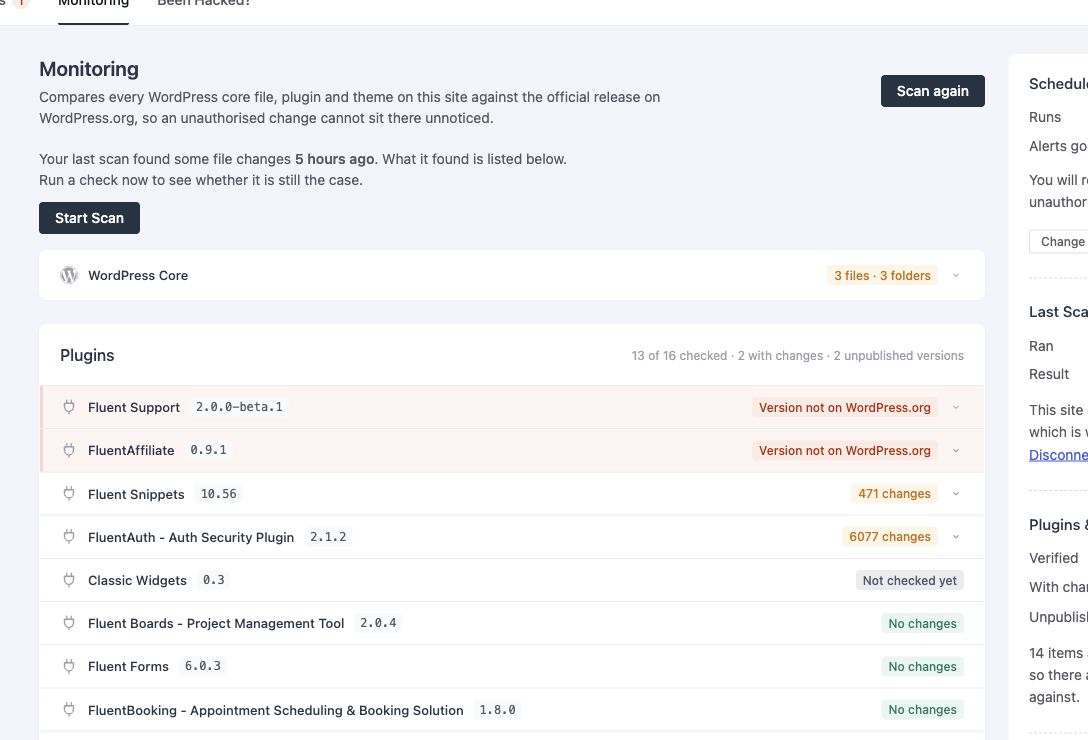
Core and directory plugins are checked against official checksums. Directory themes are compared with the official package. When an official reference is available, you can review a file diff and restore a modified file to that version’s original contents.
For premium or custom extensions that WordPress.org cannot verify, baseline snapshots record supported files so future scans can detect changes. Start from files you trust: a snapshot records the current state, including any problems already present.
Extra files have no original to restore. Review them separately rather than assuming every finding can be resolved with the same action.
Manual scans run without an alerts-service connection. Connecting the optional service adds scheduled reporting and email alerts; it receives scan-result paths and site metadata, not the contents of your files.
Recovery tools when something goes wrong
Security → Been Hacked? brings recovery actions together in a guided screen. It helps you work through account access and file changes in the same place.
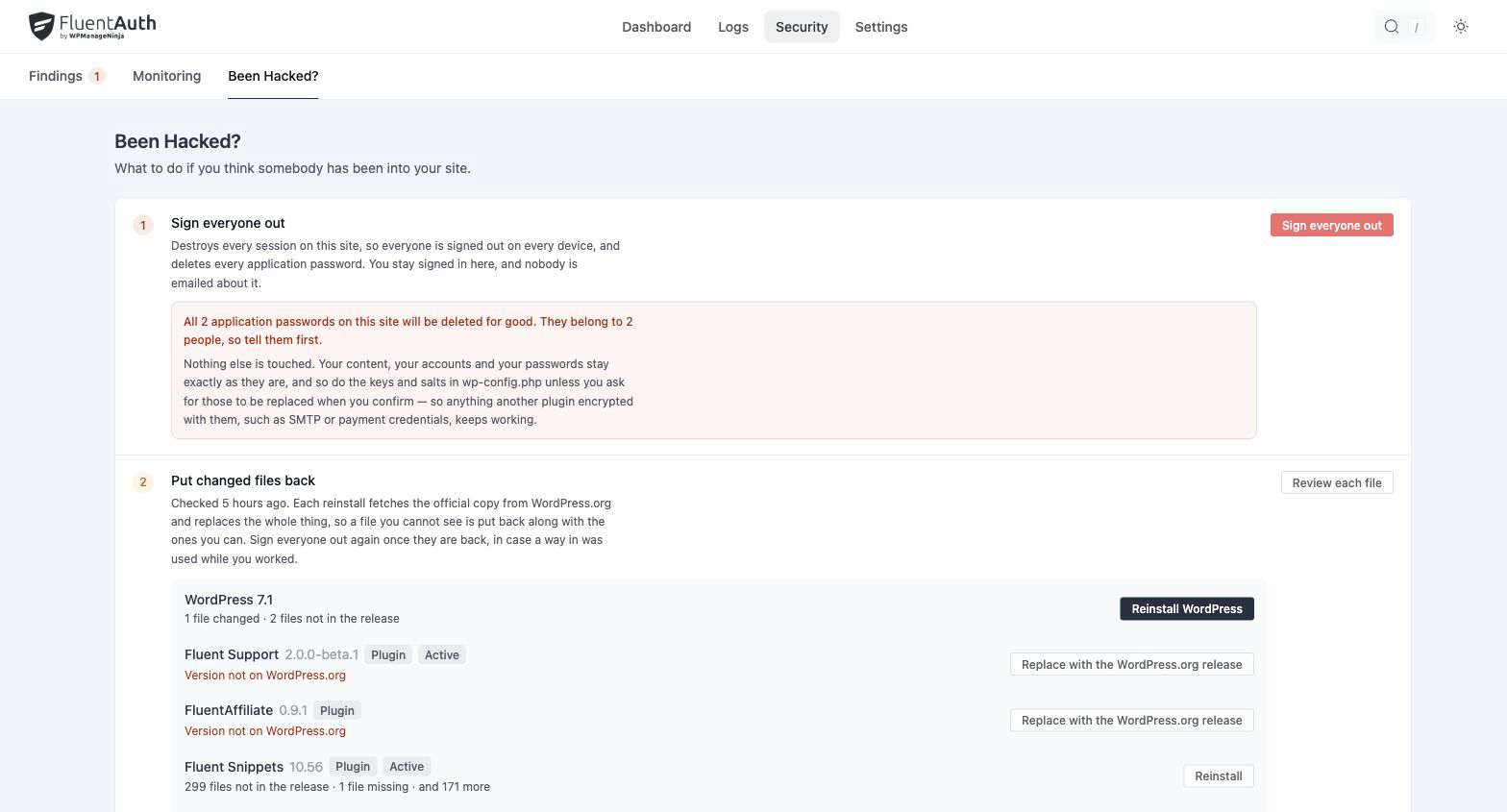
You can sign everyone out and revoke application passwords, review changed files and reinstall official WordPress.org packages, check administrator accounts, and send password-reset links to administrators or everyone. Recovery actions are recorded in the activity log with the operator.
Sending a reset email does not immediately invalidate the old password: the user still needs to complete the reset. Likewise, restoring official files is part of recovery, not proof that the original cause has been removed. The screen gives you tools to take action and a record to follow up on.
An activity log that includes site changes
The redesigned Activity Log keeps login outcomes, methods, addresses and devices easy to scan. Status filters help you move between successful logins, failed attempts and blocked attempts.
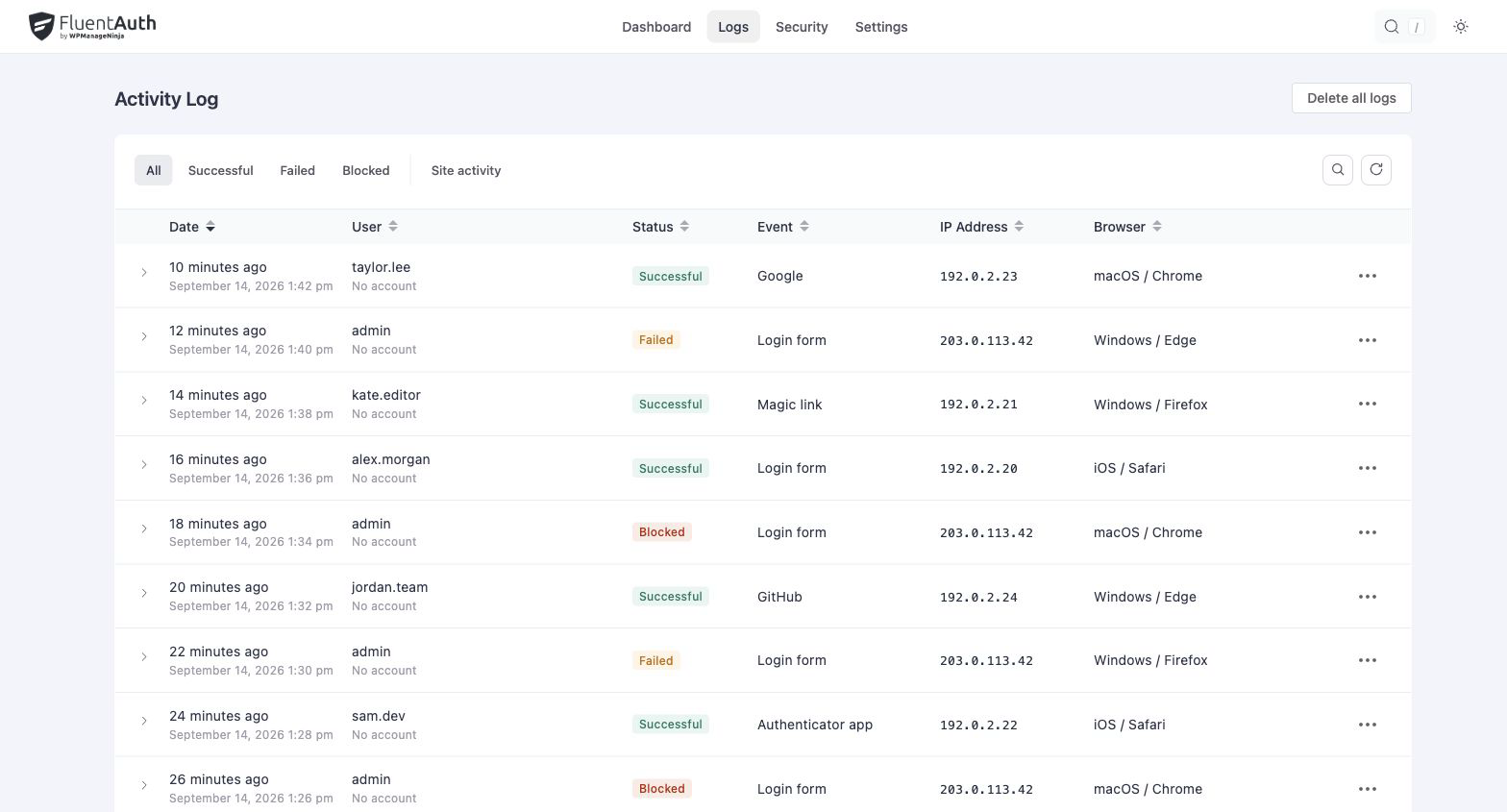
Site activity now also brings plugin events into the record: an activation, a deactivation or an update, with the version it moved from and the person who did it. That gives you useful context when investigating what changed on a site, alongside who signed in and when.
A refreshed experience for your existing login tools
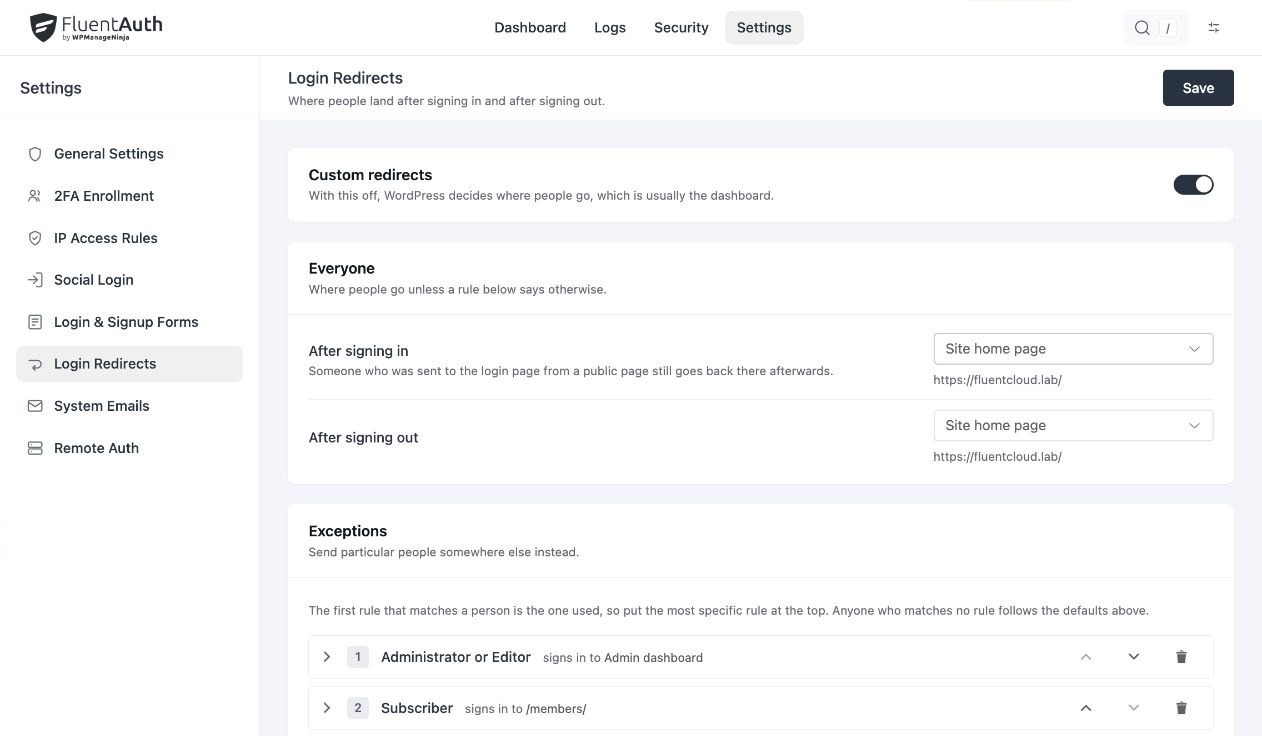
The admin redesign extends to the features you already use. Social providers have separate controls, redirects show defaults and role-based exceptions, and account emails are grouped with their customisation status and edit actions.
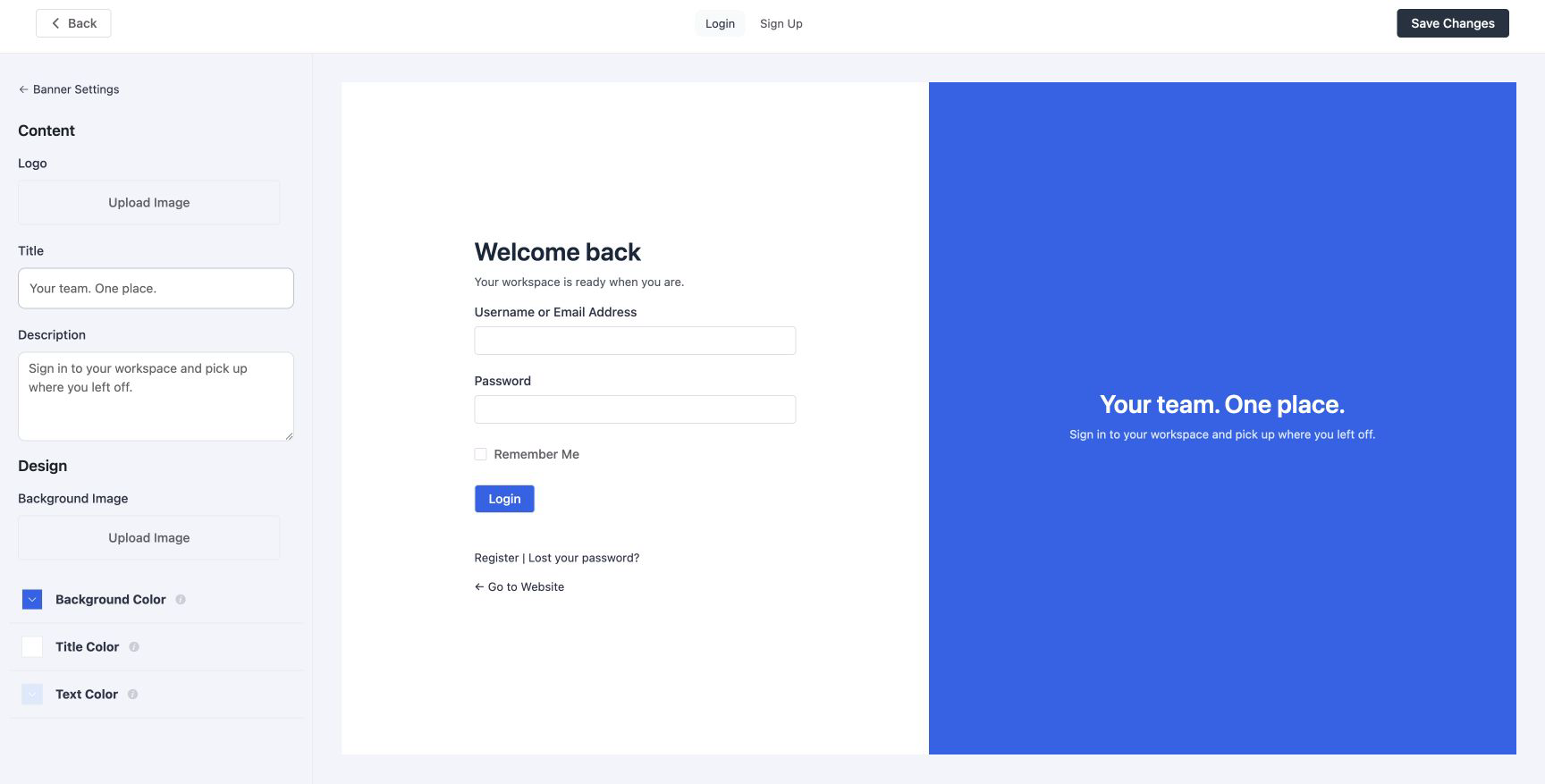
The login page designer opens in a dedicated workspace with its own controls and live preview. Adjust the form and banner for both login and signup, using your own welcome copy, colours, logo and background.
Google, GitHub and Facebook login, Google One Tap, magic links, shortcode forms, redirects and customised system emails all remain part of the free plugin. You can improve the welcome for members and customers while keeping stronger verification for privileged accounts.
Login page designer → · Social login → · System emails →
A guided start
The new first-run wizard walks through login limits, two-factor choices, hardening and alerts, then presents a summary before applying settings. The scan-alerts connection is optional. Skipping the wizard does not save its proposed configuration, and everything it applies can be revisited in Settings.
Together, these changes make 3.0 a more complete place to manage login security: stronger verification, more visibility into changes and a redesigned admin panel connecting the work. We may introduce a Pro version in the future. The features shown on this site will remain available in the free plugin. We will not remove them or move them behind a paywall.
Read the guided setup documentation → or explore every feature →.