FluentAuth supports direct passkey sign-in without entering a username or password. Users can sign in with Touch ID, Windows Hello, a compatible password manager or a security key. The browser binds the credential to your site’s domain; a copied login page on another domain cannot request it.
Requirements
- Serve the site over HTTPS. Localhost is supported for development.
- Use a browser and device that support WebAuthn.
- Your server needs PHP’s OpenSSL signature verification support.
- Keep a recovery route available before relying on a passkey.
Enable passkeys for a role
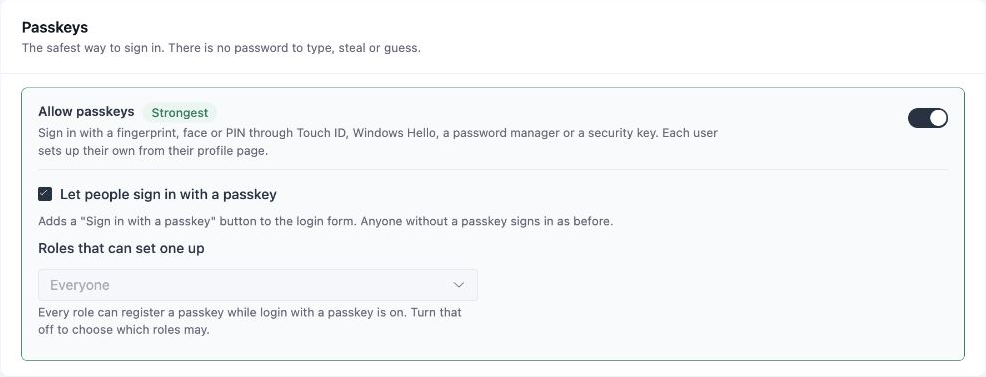
- Open FluentAuth → Settings → General Settings and scroll to Passkeys, above Two-Factor Authentication.
- Enable Allow passkeys.
- Enable Let people sign in with a passkey to add the passwordless sign-in button. This allows every role to register a passkey and disables the role picker.
- For passkeys used only after another sign-in method, leave that option off and choose Roles that can set one up. An empty list offers them to nobody, except roles covered by an enforceable 2FA requirement.
- Select Save.
Register your own device
Open Users → Profile → Passkeys. Enter a label under Name this device, select Add a passkey, and complete the browser’s device verification. You can only register credentials for your own account. Administrators can remove a credential for a user who needs help recovering access; they cannot register a replacement on that user’s behalf.
Keep a fallback
A single passkey without a fallback is not enough for FluentAuth to start challenging an account. Keep unused recovery codes, an enrolled authenticator app, or a second registered passkey. Prefer a recovery method you can access if your primary device is unavailable.
This matters even for a synced passkey: losing access to the account that syncs it can affect all of its copies. See two-factor recovery.
At sign-in
With Let people sign in with a passkey enabled, select Sign in with a passkey on the login page without entering a username or password. Your browser or password manager finds the saved passkeys for the site. Choose your account and approve the device prompt to sign in. This is discoverable passkey sign-in: the saved credential identifies your account.
Passkeys can also serve as device verification after another sign-in method. For an eligible user with a usable passkey and fallback, FluentAuth offers passkey verification before the authenticator app. A magic link proves the mailbox; it does not satisfy a required device factor.
Moving domains and troubleshooting
Passkeys are bound to the site domain. A staging copy on another domain cannot reuse your production credentials. After a domain change, use a working fallback and register new passkeys for the new site.
If Add a passkey is unavailable, check HTTPS, browser support, the enabled method and your role. If a registered passkey is not requested, check that a fallback exists and the method is still enabled for your role.