A touch. And you’re in.
- 01Select Sign in with a passkey
- 02Approve with Touch ID
- 03You’re logged in
Select Sign in with a passkey. No username or password to enter.
Sign in to WordPress without entering a username or password. Use Touch ID, Windows Hello, a security key or a compatible password manager.
New in FluentAuth 3.0.
Sign in directly with a registered passkey. Your device finds the account for this site, so there is no username or password to enter.
Select Sign in with a passkey. No username or password to enter.
With a registered passkey, your team can sign in directly. Choose passkey login, approve the device prompt and get back to work without typing login details.
Passkeys use a credential bound to your domain. A lookalike site cannot request the same credential for its own domain, and approval happens through a registered authenticator. Your fingerprint or face scan is not sent to WordPress.
Your team gets a familiar device prompt and a direct route into WordPress. Your site verifies the registered passkey to sign in the right account.
Get FluentAuth →New in FluentAuth 3.0.
Follow the setup guide →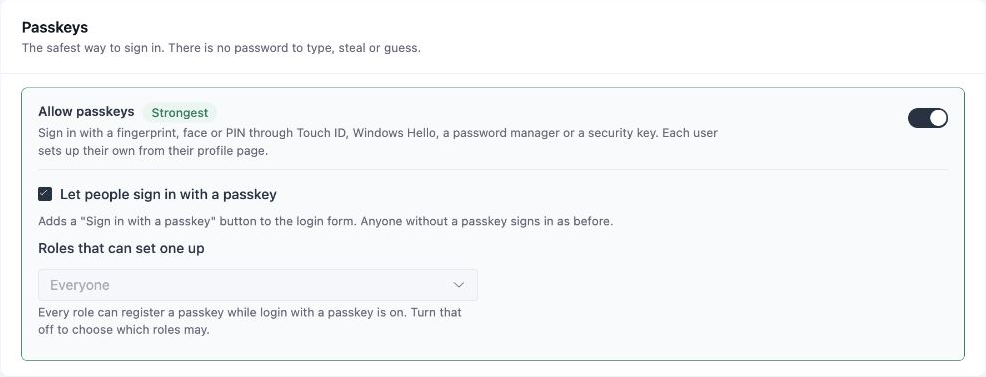
This is discoverable passkey sign-in: your browser or password manager finds the saved credential for the site, and FluentAuth uses it to identify and sign in your account. Passkeys can also provide device verification in other login flows.
Start with the people who install plugins, edit site settings and manage other accounts. Enrol one administrator, test their normal login flow, then extend the policy to the rest of the team.
Keep a fallback before requiring passkeys: recovery codes, an authenticator app or a second passkey. A lost device should not leave your team without a way back in. Passkeys also need HTTPS and a compatible browser and authenticator.
Turn passkeys on, then follow the enrolment guide to prepare a tested rollout.