← All features
File change monitoring

Understand what changed in your files.

Compare WordPress files with known copies and investigate differences before deciding what to restore.

Available in the current release. Plugin and theme checks, diffs and snapshots were added in 3.0.

How it works

From a file comparison to a decision

This illustrates the monitoring workflow, including plugin and theme comparisons.

your-site.com/wp-admin/file-monitoring

Choose a comparison baseline

Package
WordPress core
Baseline
Matching official release
A file change becomes visible

Use a matching official WordPress.org package or a snapshot made from reviewed, trusted files.

Why it matters

An unexpected file change deserves an explanation.

A legitimate update and an unwanted modification can both change a file. Without a comparison, it is difficult to know what changed or where to start investigating.

How it helps your site

Compare before deciding what to restore.

FluentAuth compares supported files with matching official packages or a reviewed snapshot. Differences give you evidence to inspect. Restoring a modified official file can remove that particular change, but a comparison does not establish the cause or certify a site as clean.

What you gain

Spend less time searching for changes and more time understanding the ones that matter.

Get FluentAuth →
Inside FluentAuth

See the controls behind the experience.

Available in the current release. Plugin and theme checks, diffs and snapshots were added in 3.0.

Follow the setup guide →
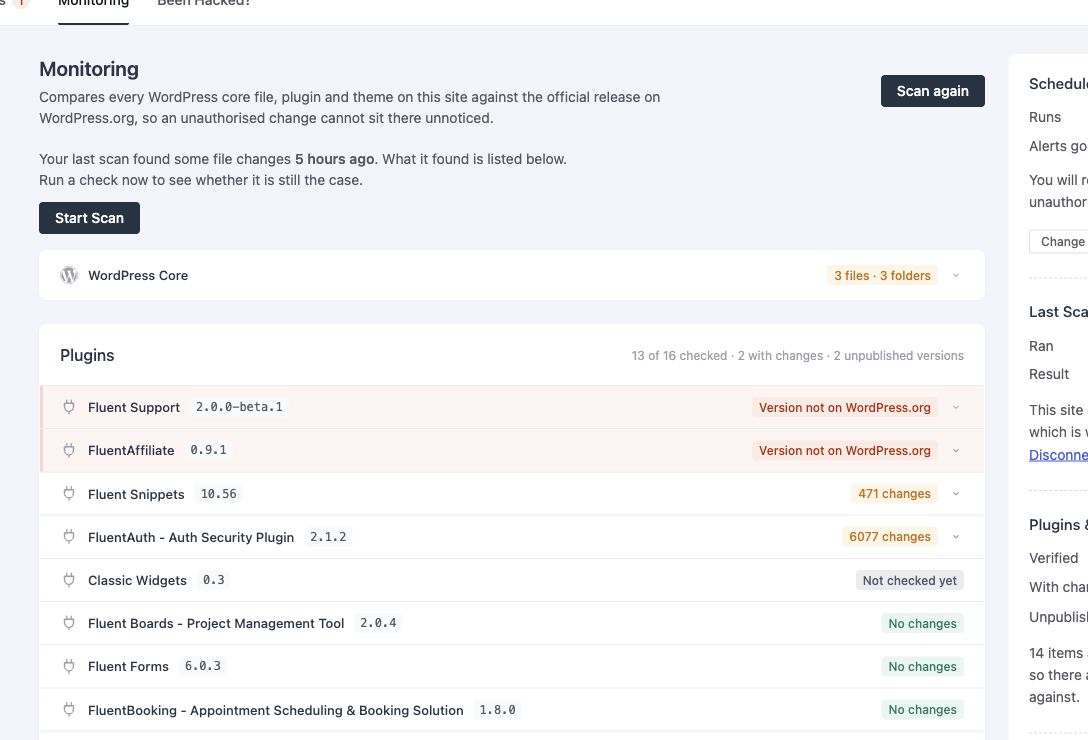
FluentAuth file change monitoring settings and results on a local development site.
FluentAuth file change monitoring settings and results on a local development site. Select the image to view it full size.

How file monitoring works

  1. Compare supported packages against the matching official WordPress.org release.
  2. Review changed or unexpected files and inspect available differences.
  3. Restore a modified file when an official original exists, or investigate further before changing it.

For custom extensions without an official comparison package, snapshots provide a baseline. Make that baseline from files you have already reviewed and trust.

Review changes after updates or an alert

A maintainer can compare a scan with recent maintenance work. An unexplained change warrants closer inspection, especially when it appears alongside unfamiliar account activity.

Can every flagged file be restored?

No. A modified official file can have an original to restore. A new or extra file has no original counterpart. Custom packages also need a suitable baseline. File comparison detects differences; it does not determine that every difference is malicious or guarantee malware removal.

Make file changes easier to investigate.

Start with core checks, then explore the plugin and theme comparisons and the baseline snapshots.