Passkeys
Sign in to WordPress without entering a username or password. Use Touch ID, Windows Hello, a security key or a compatible password manager.
New in FluentAuth 3.0.Give your team stronger login protection and your members an easier way in. Review site activity and investigate file changes from one dashboard.
Built by WPManageNinja · 10,000+ active installs
FluentAuth 3.1.0 is here → Turnstile bot protection, a PHP security warning and magic links that work in Outlook.
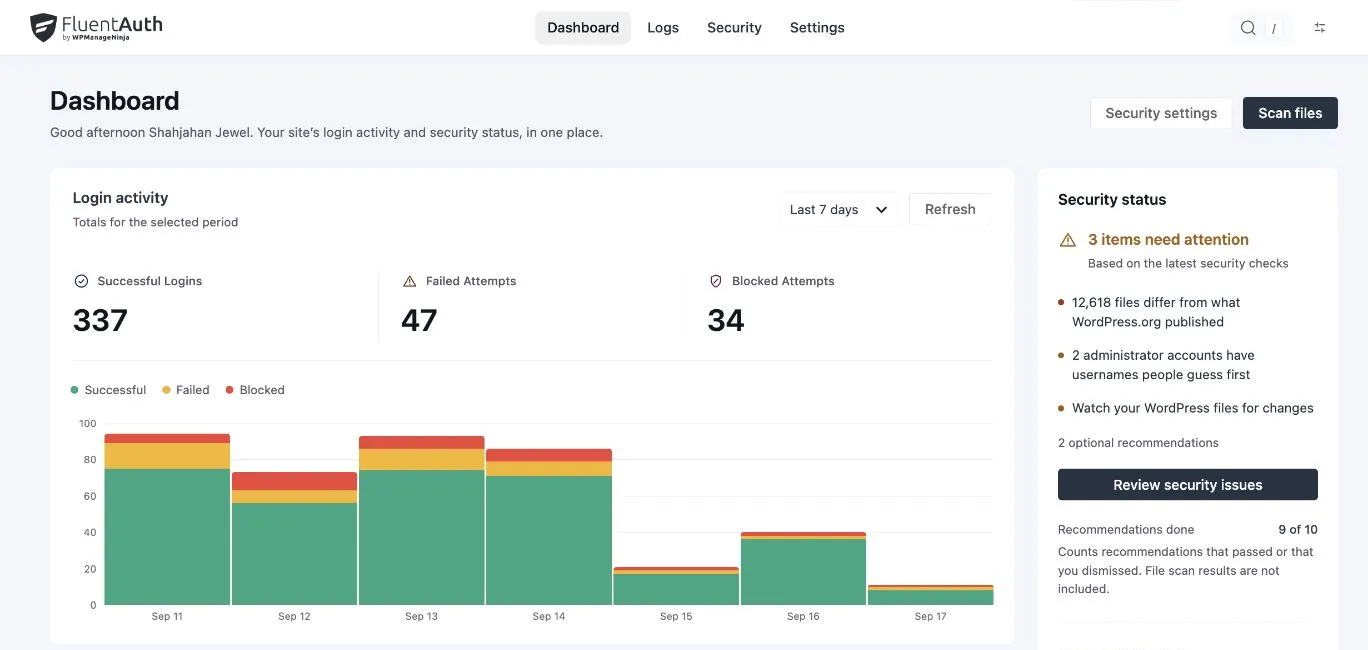
Give your team a stronger second check, help members sign in and understand the activity worth reviewing.
Sign in to WordPress without entering a username or password. Use Touch ID, Windows Hello, a security key or a compatible password manager.
New in FluentAuth 3.0.Choose verification methods by role, so the people with the most access have an extra check before entering WordPress.
Authenticator apps, passkeys and recovery codes were added in 3.0.Set a failed-login threshold and a block window to slow repeated attempts from the same address.
Offer Google, GitHub and Facebook sign-in, with Google One Tap for an additional way to enter your site.
Review successful, failed and blocked logins with the details you need to understand unusual activity.
Plugin activity and recovery actions were added in 3.0.Compare WordPress files with known copies and investigate differences before deciding what to restore.
Plugin and theme checks, diffs and snapshots were added in 3.0.Make the experience your own with login page design, magic links and role-based redirects.
Sign in to WordPress with a passkey, without entering a username or password. Watch the demo, or try the buttons yourself.
Select Sign in with a passkey. No username or password to enter.
Review configuration issues, exposed files and account risks. Each finding explains what it means and the next step to take.
Explore the security checklist →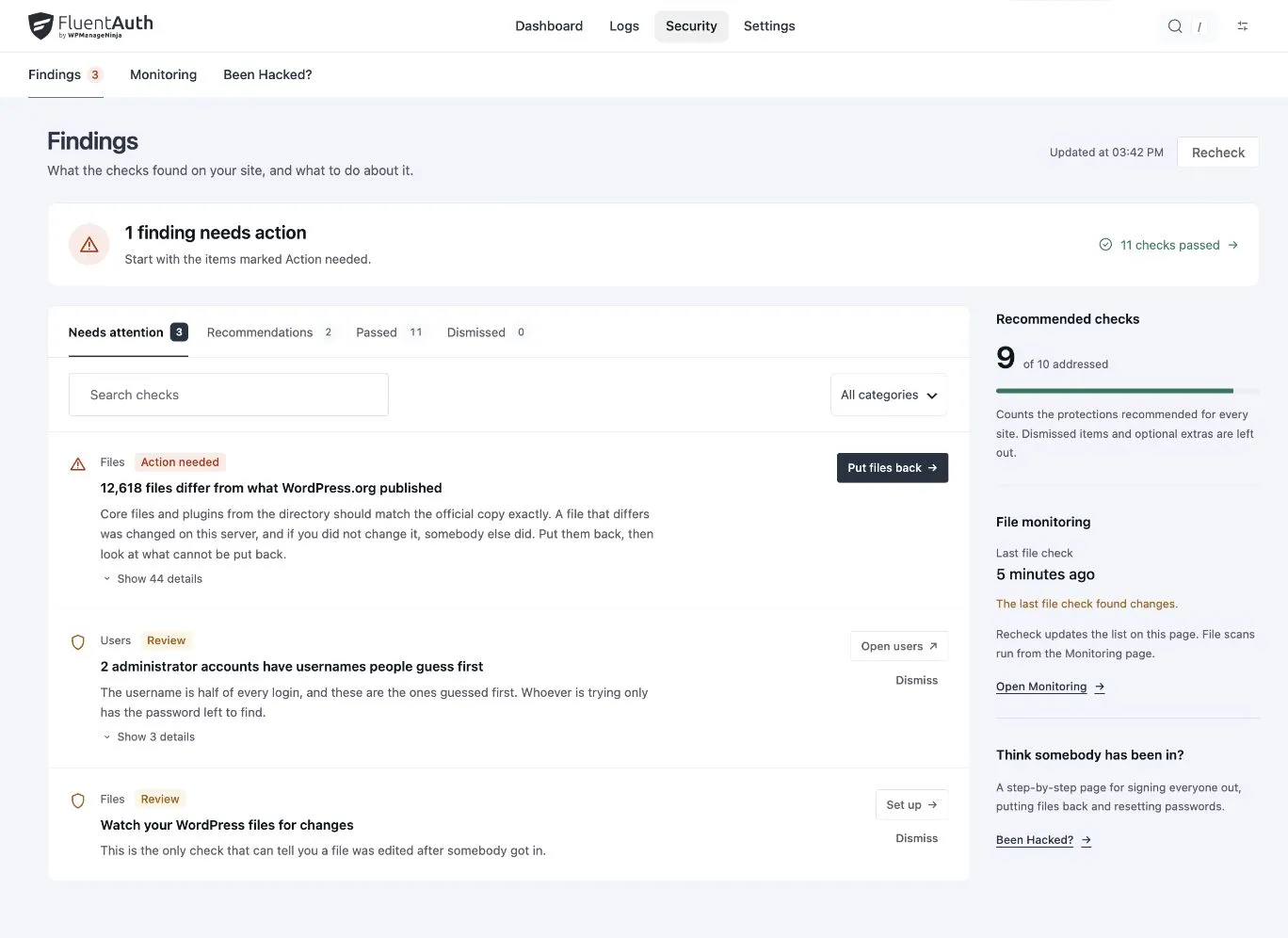
Compare core, plugins and themes with official WordPress.org releases. Review differences before restoring a modified file, and keep snapshots for custom extensions.
See how file monitoring works →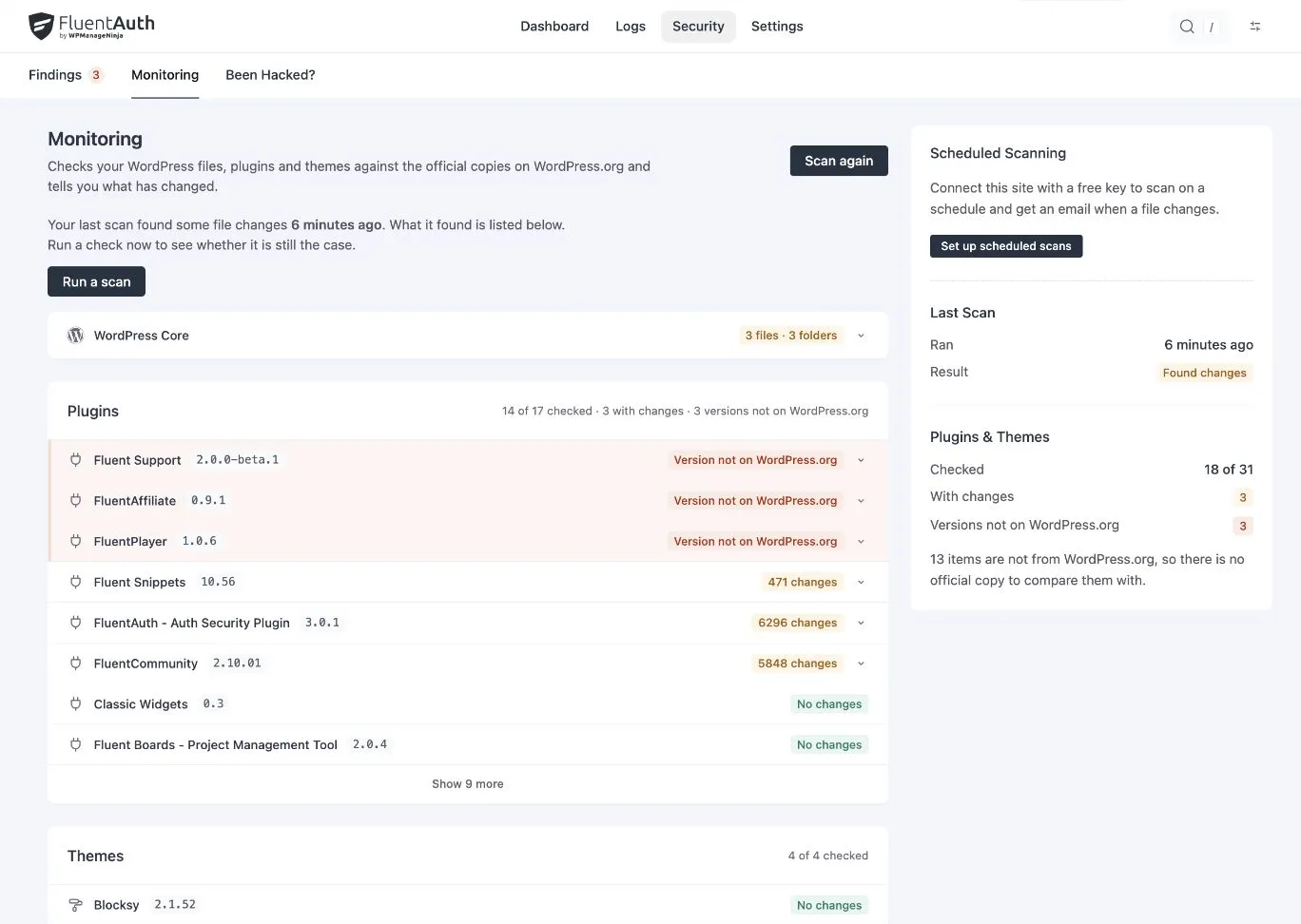
Your logo, colours and welcome message. Design the login and signup screens with a live preview, then send each role to the right page after sign-in.
Explore the login page designer →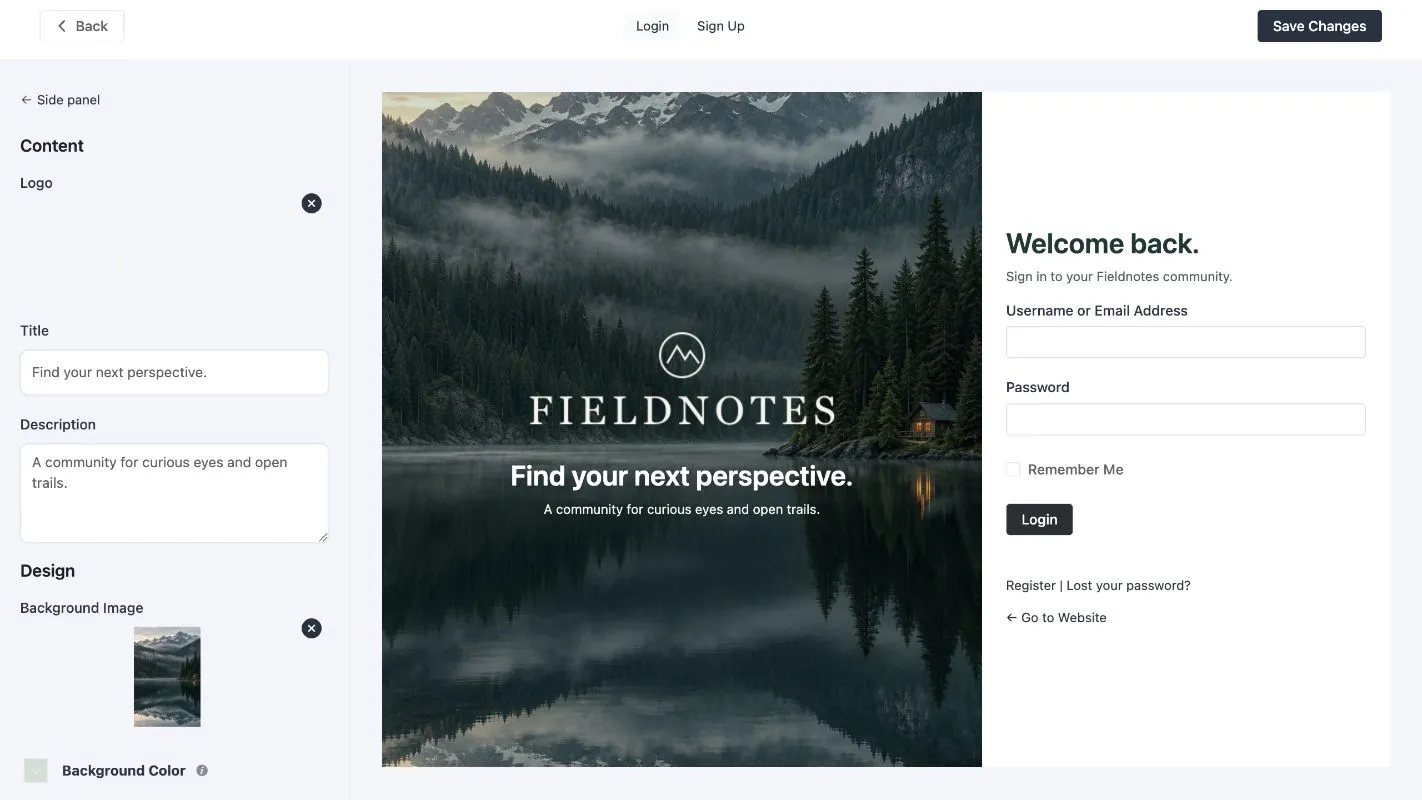
FluentAuth hooks the login WordPress already has and adds a gate in front of the password check and one behind it. Same five gates every time. What changes is who is knocking.
The ordinary case, and the one that has to stay quick.
Block list, and roles tied to an allow list
Not on your block list, and no role restriction stands in the way.
Failures from this address in your window
First attempt in the window, so there is nothing counted against this address.
Checked by WordPress, as it always was
Correct. WordPress checks it exactly as it did before you installed anything.
Passkey, authenticator app or emailed code
Their role needs one, so they touch a passkey or type the code from their app.
Written to the log, alerted, and routed by role
Logged with the method, address and browser, and they land on the page their role should see.
The attack nearly every WordPress site actually gets.
Block list, and roles tied to an allow list
Not blocked yet. It is a fresh address, which is rather the point of a botnet.
Failures from this address in your window
Five failures inside thirty minutes, and the sixth is refused before the password is ever looked at.
Checked by WordPress, as it always was
Never reached. A refusal at the gate above costs your database nothing.
Passkey, authenticator app or emailed code
Never reached.
Written to the log, alerted, and routed by role
Every attempt is in the log. The block is one row whose count climbs, not hundreds of rows, and you get at most one email a minute.
Reused somewhere else, breached there, and now correct here.
Block list, and roles tied to an allow list
Clean. The attempts are spread over hundreds of addresses, a few each, so no single one is ever blocked.
Failures from this address in your window
Passed, and that is the weakness of counting by address. So FluentAuth also counts by account.
Checked by WordPress, as it always was
Correct. The password is genuinely this user’s; it just is not this user typing it.
Passkey, authenticator app or emailed code
Failures against this one account have passed three times the per-address limit, so a code goes to the account’s own inbox. The owner can read it. Whoever bought the password cannot.
Written to the log, alerted, and routed by role
Logged. An address that has signed in to this account before is trusted, so your own team never meets the challenge.
No password at all, which changes what each gate is for.
Block list, and roles tied to an allow list
Still applied. A link to your inbox is not a way around a role that may only sign in from the office.
Failures from this address in your window
Skipped. Redeeming a link from your own inbox is not a password guess, so a locked-out admin can still get back in.
Checked by WordPress, as it always was
There is not one. Holding the mailbox is the proof.
Passkey, authenticator app or emailed code
An emailed code would prove the same mailbox twice, so it is not asked for. A passkey or authenticator code, if the role needs one, still is.
Written to the log, alerted, and routed by role
Logged as a magic link, so the record says how they got in and not merely that they did.
A provider sets the session itself, so the rules are applied there too.
Block list, and roles tied to an allow list
Applied here as well. Google says who somebody is. It does not say where they are.
Failures from this address in your window
Nothing to count. No password is being guessed.
Checked by WordPress, as it always was
None. Google vouches for the address, and the account is matched or created.
Passkey, authenticator app or emailed code
Still required for the roles that need one. A provider button is not a way past it.
Written to the log, alerted, and routed by role
Logged as a Google sign-in, next to every other way into the site.
The order is the order the plugin checks in. Attempt limits, address rules and second factors each have their own page.
Let members choose Google, GitHub or Facebook, or email them a one-time magic link. Keep device verification for the roles that need it.
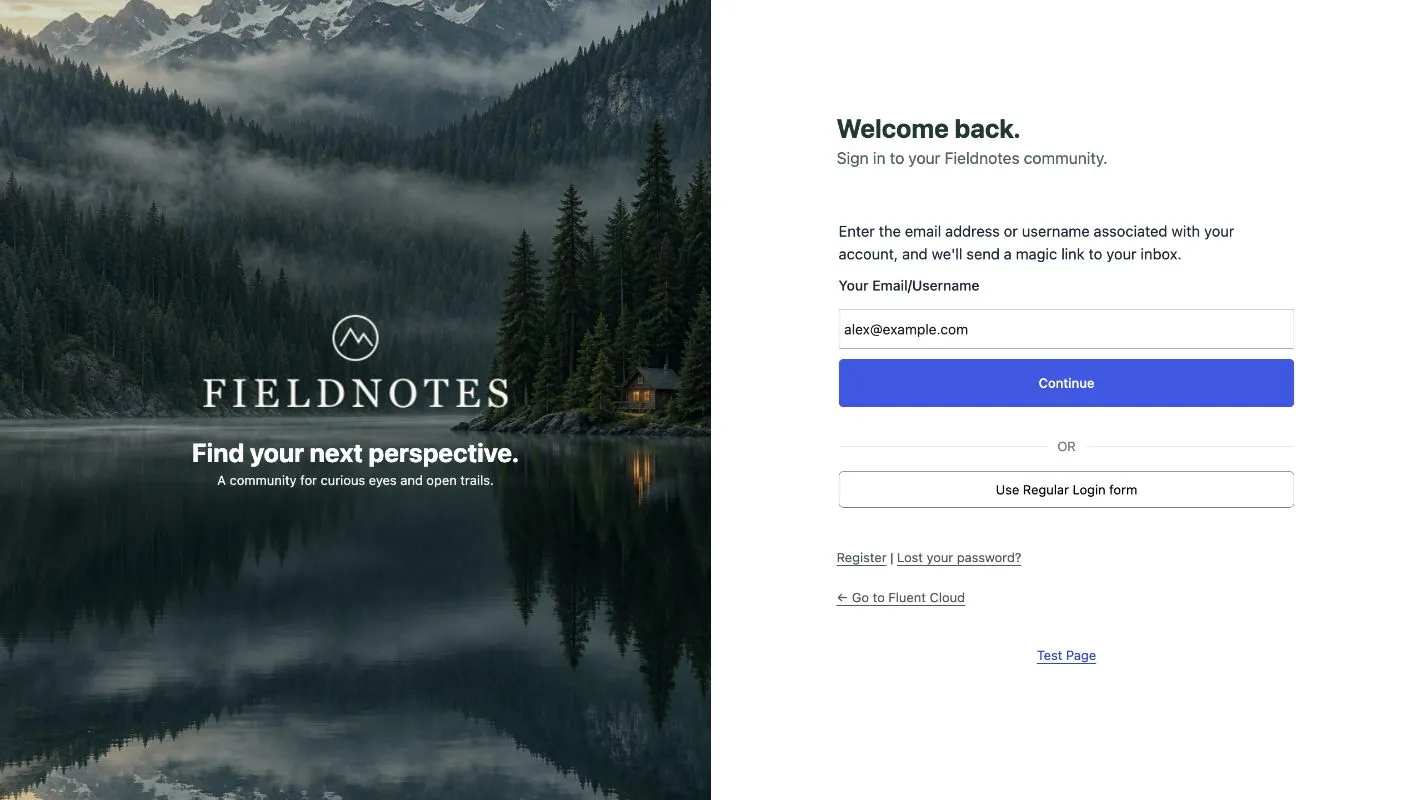
FluentAuth brings login protection, file monitoring and recovery into one workflow. FluentAuth does not include a firewall; use your host or an edge service for that layer. For your members, there is a way that needs no password.
Make the door hard to open.
See the activity worth reviewing.
Close the door again, fast.
“All the most important security features, without the unnecessary and the bloat.”
Selected reviews from WordPress users about everyday use, support and performance.
★ 4.1 average from 34 reviews on WordPress.org ↗Fluent Auth / Fluent Security is a nice security plugin with all the most important security features, but without the unnecessary and the bloat.
I finally got a light and effective security tool for my WordPress without nags about upgrading to a higher version etc. Always high quality code, fast and safe. Thank you guys!
You need to protect your login form from brute force attacks. Fluent Auth does that and is quick and easy to setup.
Tested this plugin out and wow, this is a neat and very light plugin, this is what I am using from now on instead of the others I’ve used over the years.
You guys obviously know what you’re doing. This plugin is just great, and I highly recommend it for everyone. You are a real gem to the community.
Simple yet powerful solution for protecting WordPress sites. Highly recommended for anyone looking for straightforward, reliable WordPress security!
I love FluentAuth for its simplicity. The folks at Fluent have done a great job. They are super responsive and helpful on support tickets (like always).
This is a great plugin. Even better has been the support I have received from the team.
Got superior support for resolving a conflict and finding issues in somebody else’s code. Thanks again!
Very effective, did the job perfectly.
A very useful plugin and also free.
The email sending process works great. Works fine with FluentSMTP
Clear explanations and practical steps for the people looking after your site.
Enable passkeys by role, register your device and keep a recovery route before relying on device verification.
3 min readTurn failed attempts, blocked addresses and unfamiliar sign-ins into a practical investigation with FluentAuth's activity log.
3 min readChoose who receives login alerts, use digests for routine review and build a response plan that keeps useful notifications from being ignored.
3 min readThe features shown here are included in the $0 plugin. We may introduce a Pro version in the future, but these features will remain in the free plugin. We will not remove them or move them behind a paywall. The download is FluentAuth 3.1.0. See pricing.
FluentAuth covers login protection, passkeys and authenticator apps, activity logs, file checks, a security checklist and recovery tools. It does not include a web application firewall or guarantee malware removal. Combine it with updates, backups and the protections your host provides. Declare trusted proxies before relying on forwarded visitor addresses.
Yes. Start by reviewing the protections and sign-in routes you already use. If another plugin controls login limits, verification or redirects, decide which tool will own each job. Test a representative staff account and member account, including password recovery, before changing the policy for everyone. Follow the team login guide for a staged rollout.
Begin with the accounts that can change your site. Review their roles, configure login attempt limits and choose a verification policy. Then confirm that account recovery and alert delivery work. Add social login, custom forms and redirects around the journeys your members use. The first-day setup guide walks through the controls in the order they matter.
FluentAuth does not run a PHP firewall or a file scan on every page view. Logs use their own database table. Enabled features such as custom login forms, magic login and Google One Tap can load scripts or styles where they are used. Performance depends on your site and configuration.
Passkeys, authenticator apps (TOTP) and emailed codes, with recovery codes as the backstop. Choose methods by role. A magic link already proves mailbox access, so it does not trigger another email challenge; a required device factor still applies. See two-factor authentication.
The attempt limit is per IP address, so wait out the window you configured or sign in from another connection. If you have lost your second factor, use one of your recovery codes. As a last resort, the troubleshooting page covers the constants that switch a module off from wp-config.php.
FluentAuth integrates with WordPress authentication hooks and provides role-based redirect rules. Test your checkout, member login and account recovery flows before enforcing a new method: custom login implementations and caching can affect how a challenge or redirect is displayed.
No. A hidden login URL is found by anyone who looks for it, and moving it breaks other plugins along the way. FluentAuth leaves the login page where it is and makes it safe: rate limits, a second factor, and no usernames leaking through the REST API or author archives.
Nothing, by default. Logs, settings and codes stay in your database. The optional file-integrity service can email you scan results if you register it; that registration is opt-in and explained on the screen. See the privacy policy.
The features you see on this site are included in the $0 plugin. Use FluentAuth on as many WordPress sites as you need.
We may introduce a Pro version in the future. The features shown on this site will remain available in the free plugin. We will not remove them or move them behind a paywall.
Get FluentAuthFor the features shown here.
GPLv2 or later · Unlimited sites
Optional scan alerts require a service connection.
Install FluentAuth, choose your login protections, and help your team sign in securely. Manage it all from one dashboard.
WordPress.org · GPL · no account required