Open FluentAuth → Security → Been Hacked? when you suspect unauthorised access. This screen organises recovery actions; it does not certify that a site is clean afterwards.
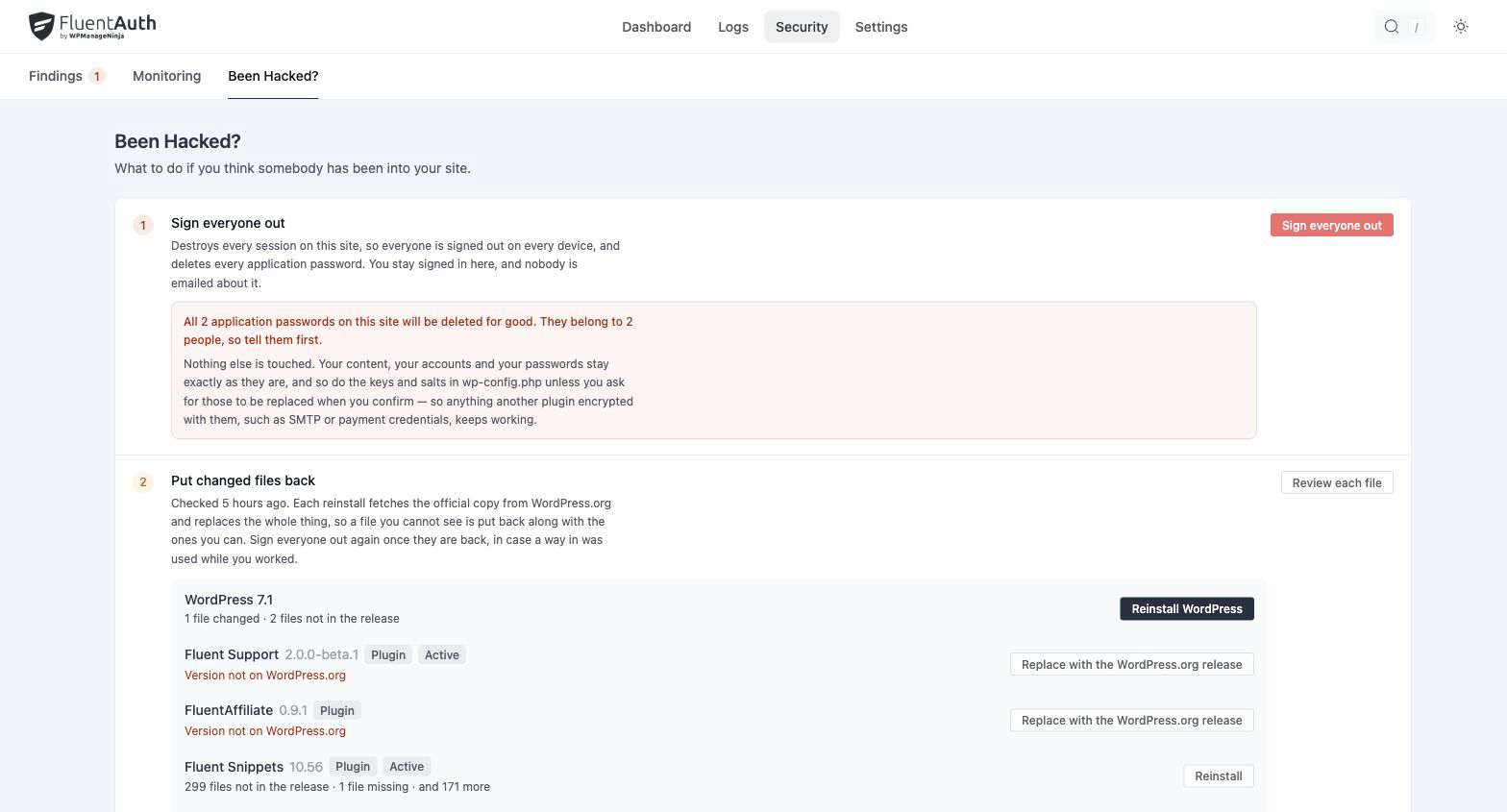
The screen works in four steps, in this order.
1. Sign everyone out
Destroys sessions on every device and revokes application passwords. A fresh session keeps you signed in to operate the screen. Before you commit, it tells you how many sessions and application passwords are open and how many people hold them, and it asks you to type SIGN OUT to confirm whenever application passwords exist or you have ticked the keys. Connected applications using revoked passwords will need new credentials.
Keys and salts in wp-config.php stay unchanged unless you explicitly tick that box. Rotation
invalidates cookies, signs you out, and can affect data other plugins encrypted with those keys.
FluentAuth itself is not affected either way: the scanner stays connected, and authenticator
apps and recovery codes keep working, because neither is keyed to the salts.
The option is not always available, and the screen says why when it is not: wp-config.php is
not writable or not found, file modifications are disabled by a constant, the file is a symlink,
or the keys are not plain literals because they come from an environment file.
2. Put changed files back
Reinstalls official packages for core, plugins and themes. Take a backup and preserve any intentional customisations before reinstalling. A replacement overwrites modified official files.
Core can only be reinstalled when the site is already on the current WordPress release. On an older version the action is blocked, with a link to the updates screen, because the only package on offer is the current one.
Extra files handled by recovery are quarantined under
wp-content/uploads/fluent-auth-quarantine with execution protections. This is not outside
the web root. A manifest.json in the folder records what was moved, when, by whom and why, so
the quarantine is evidence rather than a pile. Review it before removing anything you may need
to keep. Premium or custom extensions need a trusted copy from their vendor or your own source
control.
The screen also calls out files that cannot be restored automatically, including
wp-config.php. Review these separately. Sign everyone out again after restoring files if
access could have been regained while you worked.
3. Check who can change your site
Lists the administrators, and calls out any created in the last week, which is the account an intruder leaves behind. Investigate anything you do not recognise.
4. Ask people to choose a new password
Sends reset links to Administrators or Everyone, fifty at a time with the rest following a minute later, so a large site does not time out. Your own account is included. Sending a link does not invalidate the old password: the user must complete the reset. That is why signing everyone out comes first.
Each recovery action is recorded in the audit log under its own event name, along with the operator and the time.
What comes after
Find the original cause, update affected software and review the security checklist. Set up a device factor for privileged users. File comparison does not examine all database content and cannot replace a full incident investigation or a known-good backup.