See the story behind a sign-in.
Review successful, failed and blocked logins with the details you need to understand unusual activity.
Available in the current release. Plugin activity and recovery actions were added in 3.0.
Your site’s activity, as it happens.
Watch sample sign-ins, plugin changes and file recovery actions arrive in the log. Select an event to see its details.
| Event | Status | User | Time | IP address | Browser |
|---|---|---|---|---|---|
| Success | alex | 09:41:06 | 192.0.2.24 | Safari · macOS | |
| Alex signed in using the WordPress login form. | |||||
| Success | admin | 09:41:04 | 192.0.2.10 | Chrome · Windows | |
| The administrator activated Fluent Forms. | |||||
| Success | morgan | 09:41:02 | 192.0.2.36 | Safari · macOS | |
| Morgan completed the required passkey verification using a registered device. | |||||
| Success | admin | 09:41:06 | 192.0.2.10 | Chrome · Windows | |
| The administrator deactivated an unused plugin: Classic Editor. | |||||
| Failed | admin | 09:41:04 | 198.51.100.42 | Firefox · Linux | |
| The submitted password was incorrect. The failure counts toward the configured attempt limit. | |||||
| Success | alex | 09:41:02 | 192.0.2.24 | Safari · macOS | |
| Alex completed the required authenticator-code verification. | |||||
| Success | admin | 09:41:06 | 192.0.2.10 | Chrome · Windows | |
| After reviewing a file change, the administrator restored wp-includes/version.php from the matching official package. | |||||
| Success | admin | 09:41:04 | 192.0.2.10 | Chrome · Windows | |
| The administrator manually updated Fluent Forms to the installed release. | |||||
| Blocked | admin | 09:41:02 | 198.51.100.42 | Firefox · Linux | |
| The address reached its configured failed-attempt limit. Further refusals within the window increase the existing blocked event count. | |||||
| Success | jamie | 09:41:06 | 192.0.2.51 | Chrome · Android | |
| Jamie used a valid, unexpired, one-time login link. | |||||
| Success | admin | 09:41:04 | 192.0.2.10 | Chrome · Windows | |
| The administrator revoked other sessions. The current operator’s session was retained. | |||||
| Success | taylor | 09:41:02 | 192.0.2.62 | Edge · Windows | |
| Taylor completed passkey verification with their registered authenticator. | |||||
No matching events in the current stream. New sample events will appear here.
You cannot investigate an event you cannot see.
An unexpected administrator login or a member’s repeated failure is difficult to explain without context. Time, method and result help turn a vague concern into a focused review.
Create a trail you can follow.
FluentAuth records supported authentication events with the details needed to investigate them. Since 3.0 that includes plugin activation, deactivation and updates. Logs help you detect and understand events; they do not block an attack by themselves.
Answer support questions faster and connect unusual sign-ins with the events around them.
Get FluentAuth →See the controls behind the experience.
Available in the current release. Plugin activity and recovery actions were added in 3.0.
Follow the setup guide →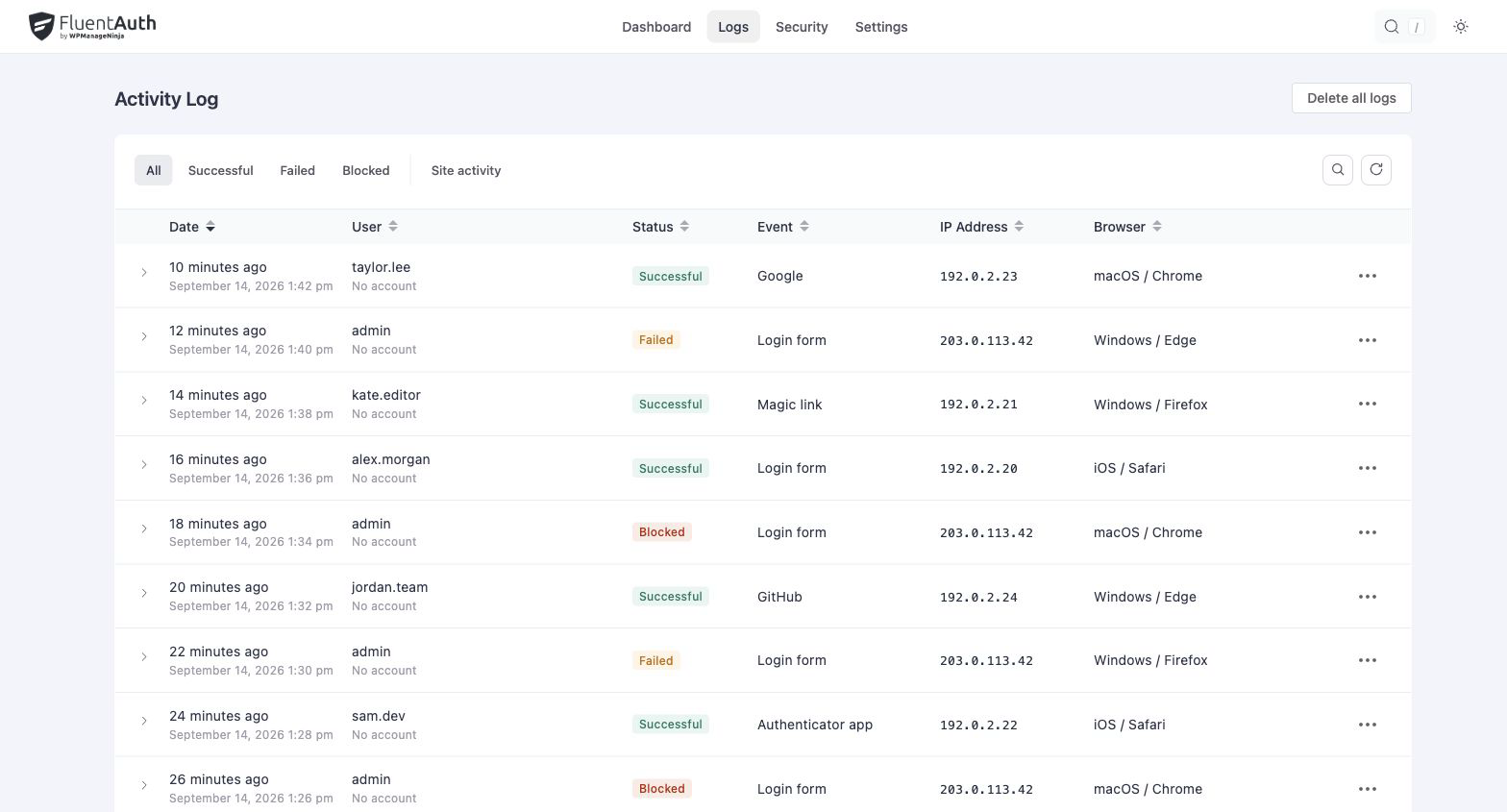
How to use the activity log
- Open the log and narrow the view to the period or activity you are investigating.
- Review the user, result, method and address associated with an event.
- Compare related events before deciding whether to contact the user or take recovery action.
An unfamiliar IP address alone is not proof of a break-in. Mobile networks, VPNs and shared connections can change what appears in the log.
Useful during support and incident review
If a member says they cannot log in, check whether attempts are failing or being blocked. If an administrator receives an unexpected alert, review the surrounding events and any file changes before deciding what to do next.
How long are logs kept?
You control log retention in settings. Choose a period that supports your review needs and account for the personal data, such as addresses and user identifiers, stored in those records.
Build on this feature.
Keep the context behind your site’s activity.
Enable the events you need to review and choose a retention period that fits your site.