FluentAuth → Logs is the record of every login attempt the plugin has seen: who, from where, with what, and whether it worked.
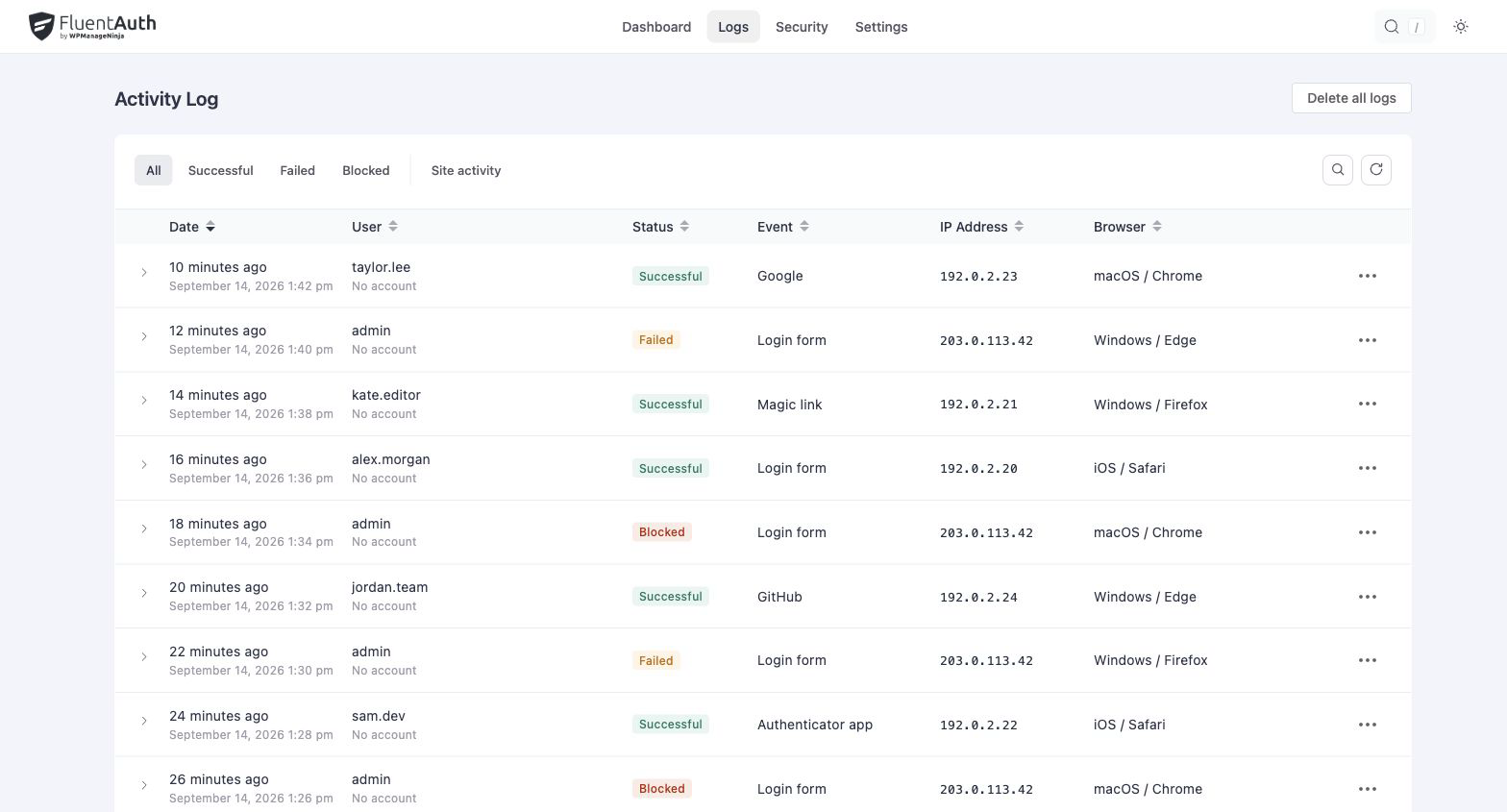
What a row holds
| Column | Meaning |
|---|---|
| Date | In the site’s timezone |
| User | The account, when the attempt matched one, and what was typed when it did not |
| Status | Successful, Failed, Blocked or Site activity |
| Event | What happened; see below |
| IP Address | The visitor’s address, resolved through any declared proxy |
| Browser | Browser and operating system from the user agent |
Expand a row for the full user agent and the description, such as “incorrect password” or the reason an address was blocked.
A blocked row is written once per address per window and its count climbs as the attempts keep coming, rather than filling the log with one row per refusal.
Site activity
The Site activity filter holds the rows that are not sign-ins: a plugin activated, deactivated or updated, and every action taken from the recovery screen. Theme changes are not recorded. An update appears when the installed plugin version changes; WordPress silently cycling a plugin during an update does not add activation or deactivation entries.

Events
| Shown as | Meaning |
|---|---|
| Login form | wp-login.php or a shortcode form, with a password |
| Passkey (no password), Passkey | Direct passkey sign-in or passkey verification after another sign-in method |
| Magic link | A one-time email link |
| Email code, Authenticator app | The second-factor step of a login |
| Google, GitHub, Facebook | Social login through that provider |
| Application password | A failed or blocked application-password authentication |
| Password reset requested | Somebody asked for a reset link |
| Plugin activated, Plugin deactivated, Plugin updated | Site activity, with the version it moved from |
| Sessions cleared, Bulk password reset started, File restored, WordPress reinstalled … | Recovery actions, with the operator’s name |
Successful application-password authentication is not recorded, only the failures and blocks
that the attempt limit acts on. Sign-ins by WP-CLI, or by code
calling wp_set_current_user() without a cookie, are not attempts and are not logged, though a
plugin activated over WP-CLI is.
Searching and filtering
The All / Successful / Failed / Blocked / Site activity buttons filter the log. Site activity also provides an event selector. The search box matches
username, IP address and method, so blocked + 45.142. shows one attacker’s whole run.
Columns sort on click.
Deleting
The bin on a row deletes that entry. Delete all logs empties the table. Attempt limits are derived from the retained log rows, so deleting a failed-attempt history can also remove the block that depended on it. Export or preserve records you need before deleting.
Retention
Settings → General Settings → Advanced → Delete logs older than (days, default 30) runs once a day. Set 0 to keep them forever. The table is indexed for the queries the plugin makes, and a year of a busy site’s logs is a few hundred thousand rows, which is fine for MySQL, but there is rarely a reason to keep more than the digest emails already told you.
Actions the plugin takes
Operations from the recovery screen are written to the same log with the operator’s name, so the record of a clean-up sits next to the record of the break-in. Each gets its own event name: sessions cleared, a bulk password reset started and finished, a file deleted, quarantined or restored, and WordPress, a plugin or a theme reinstalled.
Exporting
There is no export button. The table is {prefix}fls_auth_logs, plain rows, so any database
tool or wp db query can pull it:
wp db query "SELECT created_at, status, username, ip, media FROM wp_fls_auth_logs ORDER BY id DESC LIMIT 100"