A practical WordPress security checklist
Review privileged accounts, login protections, exposed files and monitoring with FluentAuth.
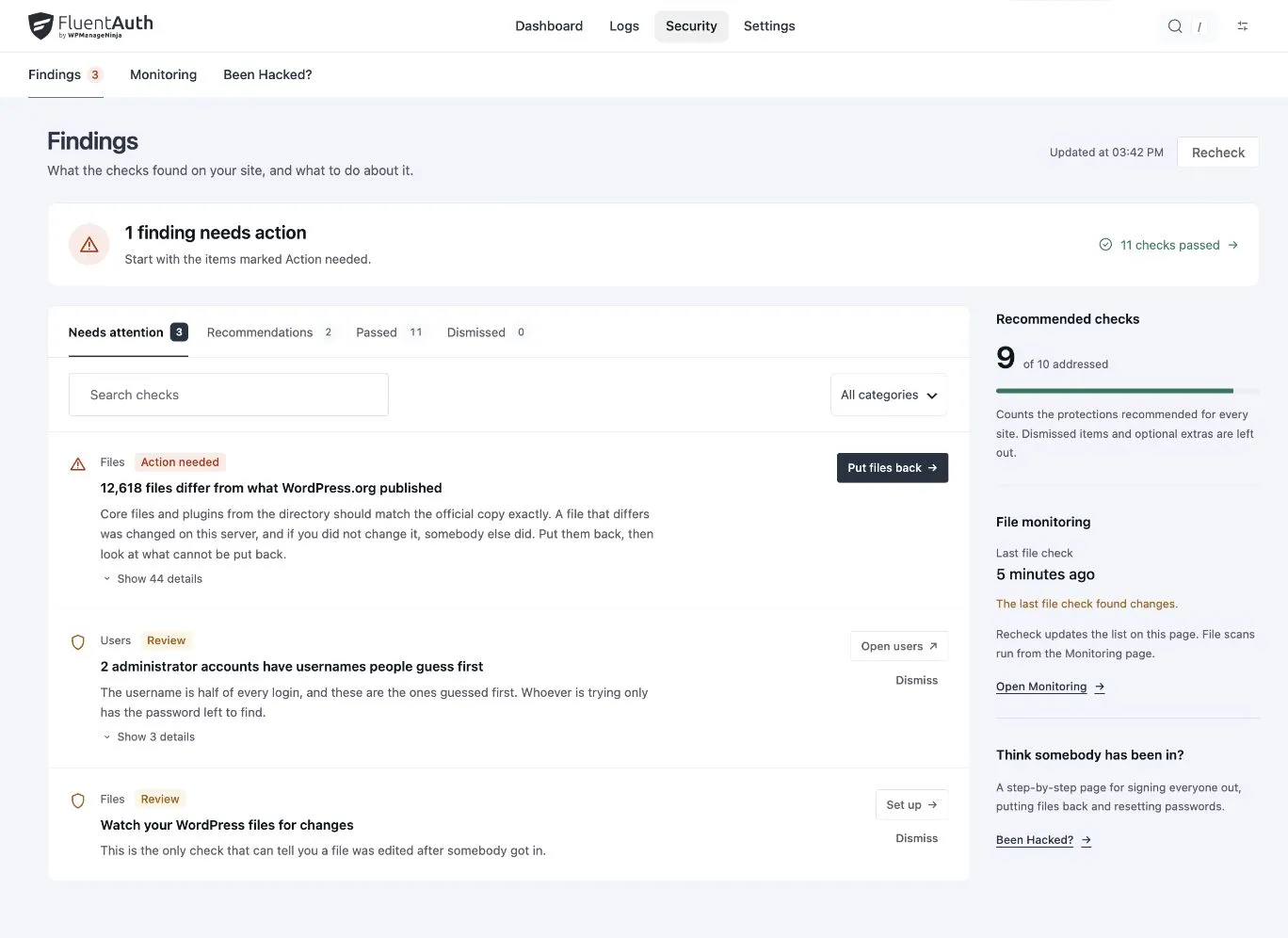
Security settings are easier to act on when you know what each change will do. FluentAuth’s FluentAuth 3.0 adds a Findings screen with explanations, status filters and relevant actions. Here is a practical order for working through it.
1. Protect accounts that can change the site
Review your administrator list. Confirm who still needs access, investigate unfamiliar users and review inactive administrators. A dormant account is a reason to ask a question, not to automatically delete someone.
Enable a device factor for the roles that need it. Enrol your own account and save recovery codes before requiring a method from the team.
2. Check the login limit and visitor address
The failed-attempt limit counts by IP. If your site uses a proxy, confirm the plugin reads the visitor’s address from a declared trusted proxy. Counting the proxy’s own address groups unrelated visitors together.
IP access rules can block known addresses and restrict selected roles to the allow list. An allow-listed address still needs valid authentication and any required second factor.
3. Restrict what the site does not use
Review XML-RPC, public user listings, application passwords and access to wp-admin. Read the impact before applying a fix. For example, an external publishing app may depend on an application password; disabling it without checking can break the integration.
Use the core security guide to understand the settings individually.
4. Investigate exposed or unexpected files
Findings can flag public backup files, PHP execution in uploads, configuration issues and unexpected mu-plugin or drop-in changes. File monitoring is separate: use Security → Monitoring to compare files with official releases.
Dismiss a finding only after understanding why it is acceptable on this site. Dismissal records a decision; it does not remove the underlying condition.
5. Check what happens after setup
Test a separate login, inspect its activity record, check email delivery and decide how often to review monitoring results. Revisit the checks after major hosting, domain or plugin changes.
The number of recommendations addressed is progress through those checks, not a guarantee that the whole site is secure. Keep backups, software updates and incident procedures alongside these controls. See the Findings documentation for screen details.