What your WordPress login log is telling you
Turn failed attempts, blocked addresses and unfamiliar sign-ins into a practical investigation with FluentAuth's activity log.
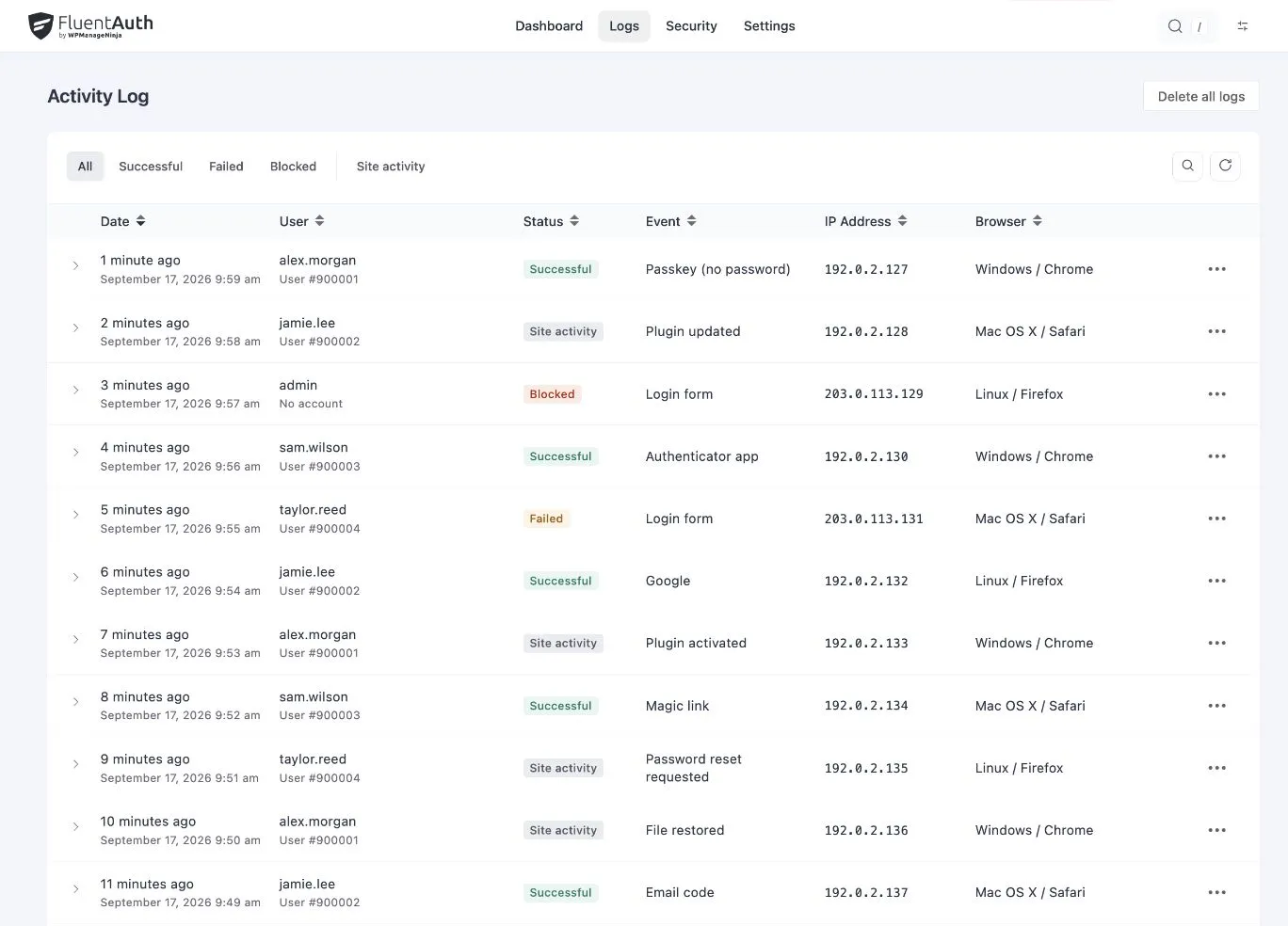
You open WordPress and see a run of failed logins. Has someone entered your site, or did the login protection stop them? The number of attempts cannot answer that question. Their outcomes and the activity around them can.
FluentAuth records supported login attempts so you can review the account, method, address and time together. That gives you somewhere to start when an alert looks unfamiliar, and something concrete to discuss with the person who owns the account.
Start with the outcome
Open FluentAuth → Logs and narrow the view to the period you want to investigate. Read the status before interpreting the username or address.
| Outcome | What it tells you | What to check next |
|---|---|---|
| Failed | This attempt did not authenticate successfully | The error, repeated attempts and whether a real user needs help |
| Blocked | A protection refused this attempt | The block reason and whether the address belongs to a legitimate visitor |
| Successful | The recorded authentication event succeeded | Whether the account owner recognises the time, method and connection |
A failed attempt against an administrator’s username does not establish that the attacker knows the password. A blocked attempt does not establish that every other route into the site is safe. Each row describes a particular event.
Investigate a pattern, not an isolated address
Imagine an editor contacts you after being unable to sign in. Search for their username, then review the failures and blocks around that time. An old saved password could explain repeated failures. A shared office connection could explain why several people appear under one address.
Now consider an administrator login that nobody recognises. Review the method and timestamp, ask the account owner whether they changed devices or networks, and compare the event with planned maintenance. An IP address is useful context, but it does not reliably identify a person. Browser information is reported by the client and should be treated as context too.
If your site sits behind a proxy, check the visitor IP configuration. A log full of the proxy’s address makes both investigation and address-based limits less useful.
Look at what happened around the sign-in
Since 3.0 the log also records plugin activity: an activation, a deactivation or an update, with the version it moved from and who did it. This lets you compare an unfamiliar sign-in with a change recorded nearby. The timing gives you a question to investigate; it does not prove the events have the same cause.
For example, a plugin update shortly after an administrator login may be expected maintenance. Ask the maintainer to confirm it. If the change is unexpected, inspect the affected extension and review file changes against a trusted reference.
The activity log is not a complete recording of everything a visitor or administrator does. It cannot reconstruct arbitrary content edits or actions that the plugin does not capture.
Preserve useful records before changing them
Keep the relevant account names, timestamps, methods and errors while investigating. Share only the details the person helping you needs. The log contains account and connection information, so it belongs with the people responsible for site maintenance.
FluentAuth has a configurable retention period. Choose one that supports your review routine instead of assuming records will remain indefinitely. There is no built-in export button; a maintainer can preserve relevant database records if a longer investigation needs them.
Avoid clearing failed attempts merely to tidy the screen. Attempt limits use retained log rows, so deleting that history can also remove the block derived from it.
Give the review a clear next step
An expected event needs no emergency action. A member struggling with an old password needs help. An unrecognised successful login needs prompt investigation and, where appropriate, account recovery and a wider site review.
Notifications and digests can bring selected events to your attention between manual checks. The audit log guide explains the available fields and filters, while the activity log feature page shows how the workflow fits into FluentAuth.