WordPress application passwords: keep, replace or revoke?
Review the credentials behind integrations and understand what FluentAuth blocks or revokes before changing them.
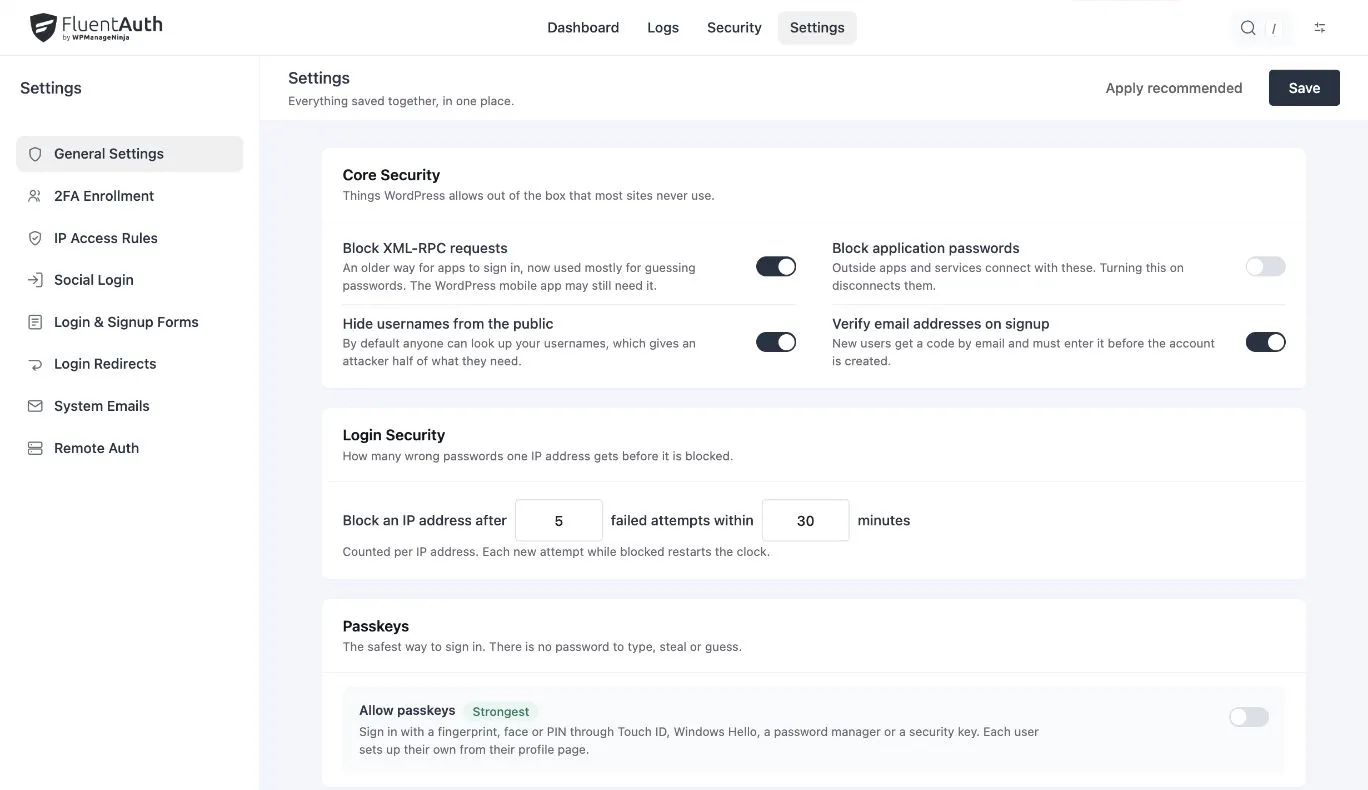
A publishing tool stops connecting after a security change. Your own WordPress password still works, so the failure seems unrelated. The missing piece may be an application password: a separate credential used by an integration.
Treat these credentials as part of your site’s access inventory. A person leaving the team and a service you stopped using both deserve an access review.
Know which credential you are reviewing
WordPress application passwords authenticate applications and scripts through supported APIs. They are separate from the password a person enters on the login form and can be revoked individually. WordPress displays a new application password once and stores a hash. See the WordPress application-password handbook.
FluentAuth’s Block application passwords setting controls whether this authentication mechanism is available. It does not decide which integrations your business still needs. That decision starts with an inventory.
Give every connection an owner
Open the relevant WordPress user profile and review its Application Passwords section. For each entry, record the service, the account it uses, the person responsible and the work it performs. Keep the secret itself out of the inventory document.
Imagine a site with a current publishing integration and a discontinued reporting experiment. Both may still have credentials. A useful review ends with an explicit decision for each connection, rather than a general assumption that everything under an administrator profile is necessary.
| Situation | Suggested decision |
|---|---|
| Recognised integration still doing necessary work | Keep it and confirm ownership |
| Known integration with a suspected credential leak | Replace its credential and revoke the exposed one |
| Retired tool | Revoke its credential after checking dependencies |
| Unrecognised credential | Investigate its account, owner and purpose promptly |
Test the actual integration
Ask the owner to confirm a real operation, such as publishing a test draft in a safe environment. A successful browser login does not test API access. Keep the expected result and any authentication error so the maintainer can identify which layer refused the request.
If you intend to block application passwords entirely, first check publishing clients, maintenance jobs and connected services. Turn the setting on only after establishing that those connections are unnecessary or have a supported replacement. In the site’s next maintenance check, confirm that scheduled jobs still complete.
If authentication fails unexpectedly, review whether FluentAuth’s block setting is enabled and inspect the supported attempt-limit logs. Do not repeatedly regenerate credentials without identifying the refusal.
Understand recovery’s wider effect
The recovery action Sign everyone out, added in 3.0, also revokes application passwords. That means connected tools need new credentials afterwards. Signing a human user back in does not repair those integrations.
Prepare a list of essential connections before running the action where circumstances allow. Once the affected accounts and site are ready, issue replacement credentials only for approved tools and test each one. Revoked secrets cannot simply be recovered from WordPress.
Use the Core Security documentation for the blocking control and the session recovery guide for the broader recovery workflow.