How to review WordPress file changes
Understand modified, extra and unverified files before restoring anything. A practical workflow for FluentAuth monitoring.
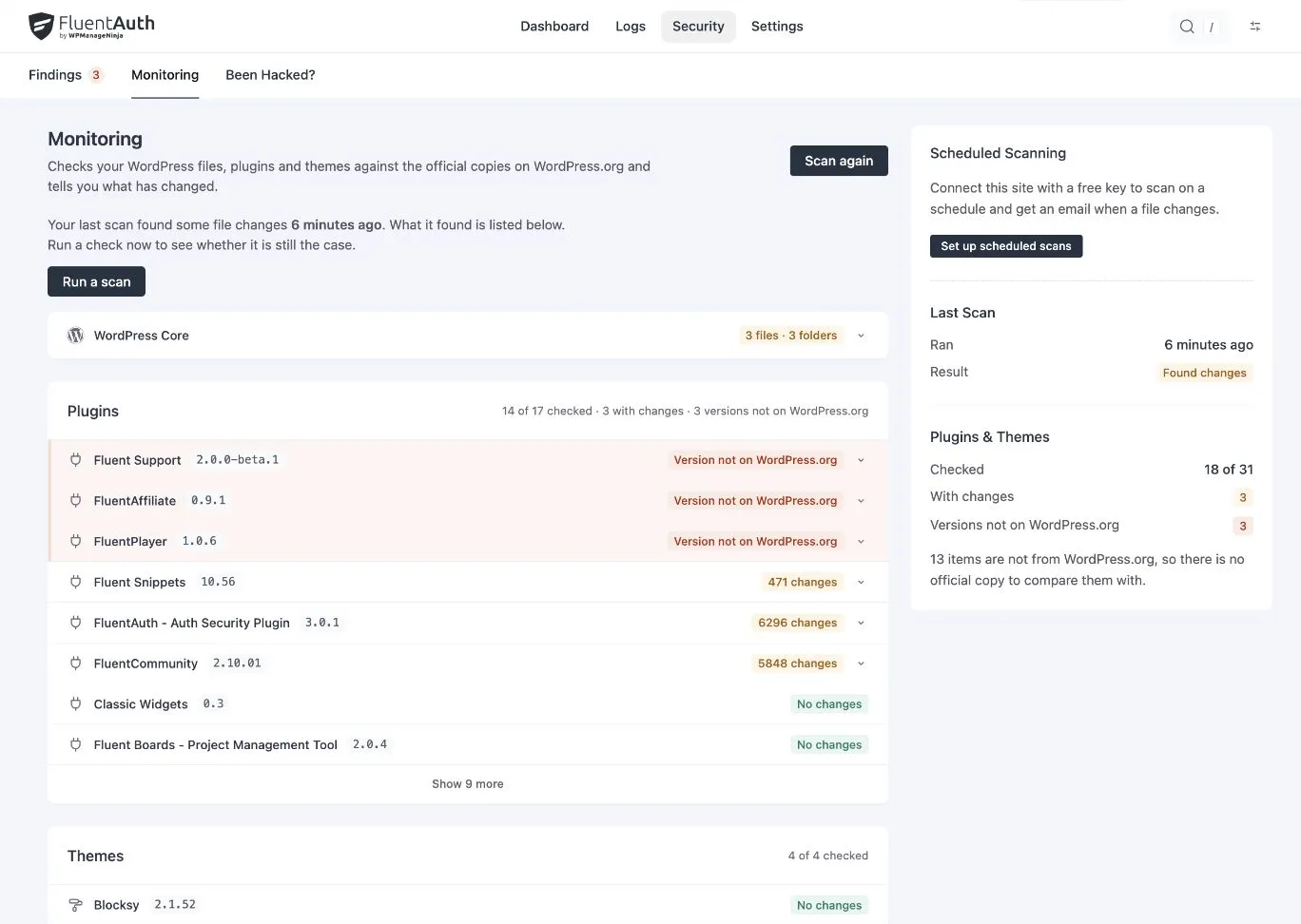
A changed file deserves an explanation. It does not automatically mean your site was hacked: a developer edit, an incomplete update or a custom extension can also produce differences. FluentAuth helps you compare what is on disk with a reference copy.
Core checks are available in the public plugin. Plugin and theme comparison, diffs and baseline snapshots described here were added in 3.0.
Read the reference first
Open Security → Monitoring. WordPress core uses official checksums for your installed version. Directory plugins use their published checksums. Themes use their official package, which requires the PHP ZipArchive extension.
A premium plugin or custom theme may have no official WordPress.org reference. That means unverified, not malicious or safe. Use a trusted vendor copy or your own repository to investigate it.
Distinguish the types of change
A modified file exists in the reference but has different contents. Review the diff and check with whoever maintains your site before restoring it.
An extra file has no original in that package. Restore cannot invent a reference for it. Identify why it exists before deciding what to do with it.
A missing file belongs to the official release but is absent locally. A reinstall can restore the package, but preserve intended modifications first.
An unpublished version means the reported installed version cannot be found in the directory. That can happen with a development build. Check its provenance rather than assuming a published version with similar numbering is the right replacement.
Use snapshots with care
A baseline records supported files in their current state so later scans can detect changes. Take it after checking that the installed files are ones you trust. A snapshot of already compromised files records those compromised files as its starting point.
Before updating a snapshot, review the differences. Replacing the reference simply to clear a finding removes the comparison you needed to investigate it.
Restore with a recovery plan
Take a backup. Restore a modified file when the official version is the intended version. For broader compromise, use recovery tools to review reinstalls, sessions and accounts together. Replacing files alone does not change a stolen password.
Optional scheduled alerts require a service connection. Scanning runs on your server; the service receives scan-result paths and site metadata, not file contents. Manual checks are available without the connection.
The file integrity guide explains reference sources and limitations.