Why signing everyone out matters after suspicious access
Understand sessions, application credentials and password-reset requests before using FluentAuth recovery tools.
You have identified suspicious account activity and want to stop access while investigating. Sending a password-reset email feels like a natural first step, but an email is only a request. It does not mean the account owner has completed the reset or that existing access has ended.
FluentAuth 3.0 brings session revocation and account-recovery actions into one workspace. Understanding the differences helps you choose what to do and explain the consequences to your team.
Separate sessions from credentials
A browser session lets someone continue working after signing in. An application password allows a connected tool to authenticate. A normal account password can be used in future sign-ins. These are related forms of access, but changing one does not justify assumptions about all the others.
WordPress provides session management tools for administrators working through WP-CLI. FluentAuth’s recovery screen provides its own coordinated action from the admin.
What Sign everyone out does
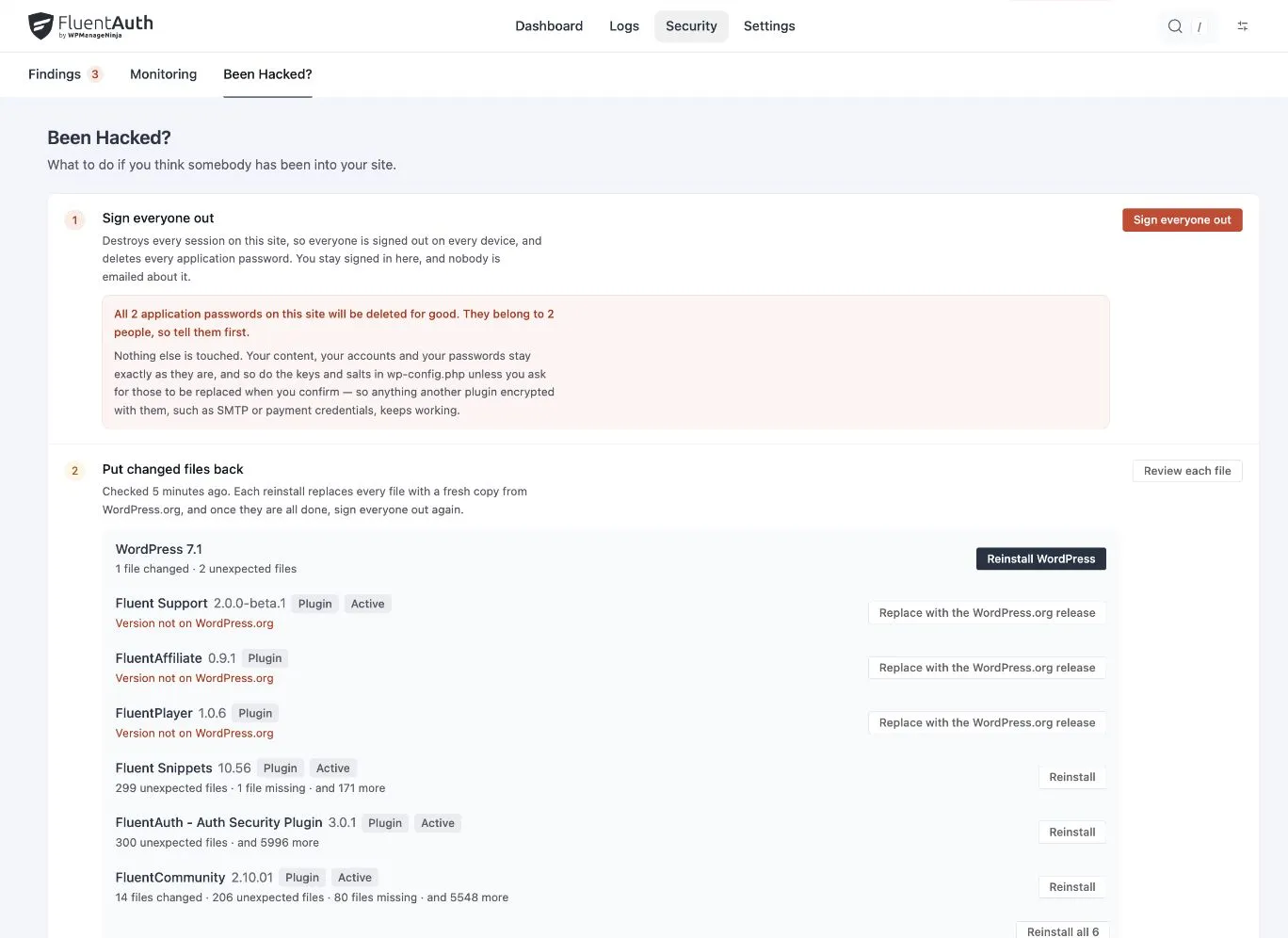
Open FluentAuth → Security → Been Hacked? and read the confirmation for Sign everyone out. The action destroys existing sessions and revokes application passwords. With the default action, FluentAuth issues a fresh session for the administrator operating the screen so they can continue recovery.
This is a site-wide action. Members may need to sign in again, and applications using revoked credentials will fail until an approved replacement is configured. Explain the interruption to the people who maintain essential integrations.
The default leaves the security keys and salts in wp-config.php unchanged. The optional key-rotation action is separate. Successful rotation also signs out the operator and can affect values other plugins encrypted using those keys. Choose it with an understanding of those dependencies.
A reset request is not a completed reset
The recovery screen can send password-reset links to administrators or everyone in batches. The old password is not invalidated simply because the message was sent. If an account is known to be compromised, review and secure it directly rather than relying on an unread message.
| Action | Immediate effect | Follow-up |
|---|---|---|
| Sign everyone out | Existing sessions are invalidated; application passwords are revoked | Reconnect approved integrations and review affected accounts |
| Request password resets | Reset messages are queued for the selected users | Confirm completion and handle compromised accounts directly |
| Restore files | Selected files are replaced according to the recovery operation | Investigate the cause and review other affected data |
Close the route back in
Revoking access creates an opportunity to investigate. It does not remove the reason the attacker gained access. Review unfamiliar administrators, affected credentials, unexpected file changes and any vulnerable or untrusted software.
Use a trusted device and coordinate with the host or incident responder when the scope is unclear. Preserve the relevant logs and evidence. If access may have been regained during recovery, review whether another sign-out is necessary after repairs.
Test recovery beyond the dashboard
When the site is ready, check a normal administrator login, required verification and an approved integration. Confirm that the people who need access can work and that retired credentials have not been reissued unnecessarily.
The recovery documentation describes each action. For the wider sequence, follow responding to a suspected compromise.