WordPress security alerts you can actually act on
Choose who receives login alerts, use digests for routine review and build a response plan that keeps useful notifications from being ignored.
A security email is useful when someone reads it and knows what to do next. If every notification reaches an unattended mailbox, enabling more alerts adds little protection.
FluentAuth can notify you about sign-ins by selected roles and addresses that reach the attempt limit. Scheduled digests give you a way to review activity together. Start by deciding who owns the response, then choose which events deserve their attention.
Name the recipient before choosing the events
Open FluentAuth → Settings → General Settings → Notifications and review the destination address. The site administrator’s email may be correct, but on a client site it could belong to a person who does not handle technical maintenance.
Choose a monitored address and agree who covers it when the usual maintainer is away. If you send to more than one person, decide who is responsible for investigating. Otherwise, everyone can assume someone else has dealt with it.
The notification settings accept multiple comma-separated addresses. Use recipients who need the account and connection details in these emails.
Separate sign-in alerts from routine summaries
A login by a role that can change the site may deserve individual attention. Repeated expected member logins may be more useful in a summary. Configure the roles around the activity your team is prepared to review.
| Notification | Useful when | First question to ask |
|---|---|---|
| Selected-role login | You want visibility into privileged account use | Does the account owner recognise this sign-in? |
| Address blocked | You want to know when an attempt limit is reached | Is this unwanted traffic or a legitimate user needing help? |
| Scheduled digest | You review broader activity at an agreed interval | What changed compared with the usual pattern? |
A login email reports a successful event, not a conclusion about the person’s intent. A block email reports an address refused by the protection, not a successful break-in. Keep that distinction in the instructions you give whoever receives them.
Choose a digest you will read
FluentAuth supports daily, weekly and monthly summaries. Pick a frequency that matches your maintenance routine. A weekly review with a named owner is more useful than daily messages that nobody opens.
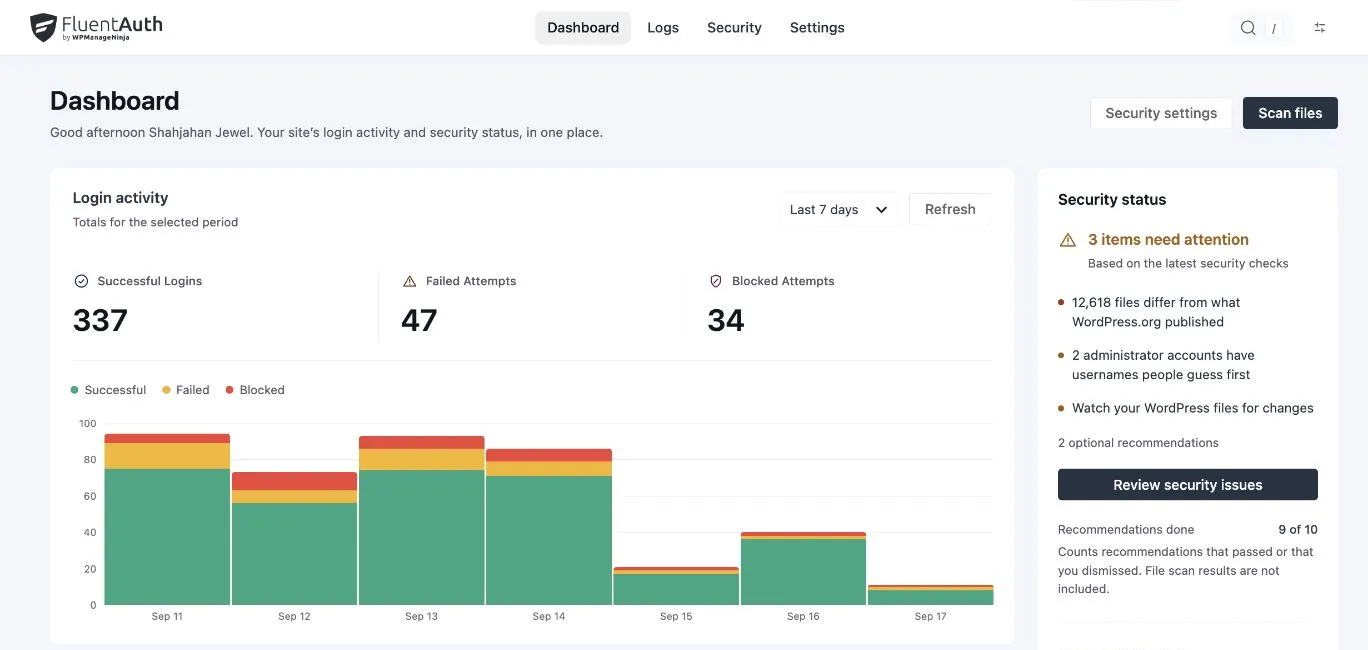
The digest is a count of successful, failed and blocked logins for the period, plus logins by magic link where that is on. It carries no addresses or usernames, so use it to decide where to look more closely in the activity log. It does not replace reviewing an unfamiliar privileged login when it happens.
Test delivery with a real event
Saving an address does not confirm that WordPress can deliver mail. FluentAuth uses WordPress email delivery, so hosting configuration and the site’s mail service affect whether messages arrive.
Sign in with a test account in one of the selected roles, then confirm that the intended recipient receives the notification. Check spam handling and any mailbox rules that might hide it. If delivery fails, inspect the site’s mail configuration before changing the alert policy.
A mail plugin such as FluentSMTP can connect WordPress to a configured email service. The important outcome is a successful end-to-end delivery test, whichever service you use.
Write down what happens after an unfamiliar login
Give the recipient a short procedure: verify the event with the account owner, inspect the surrounding log entries and escalate unexplained activity to the site maintainer. Keep the relevant records while investigating.
If the event points to unauthorised access, review the affected account and the site together. Since 3.0, session revocation, password-reset requests and file recovery actions live together in a recovery workspace. Those actions need a considered response; an unfamiliar address alone is not enough to justify reinstalling files.
File-monitoring alerts have separate settings and service requirements. Configuring login notifications does not also configure scheduled file alerts. Follow the file integrity guide for that workflow.
Use the notification guide to configure the available controls, then make one test delivery part of your regular maintenance checks.