Locked out of WordPress? Find the cause before changing settings
Identify an attempt limit, an IP rule or a missing second factor, then recover access with the smallest necessary change.
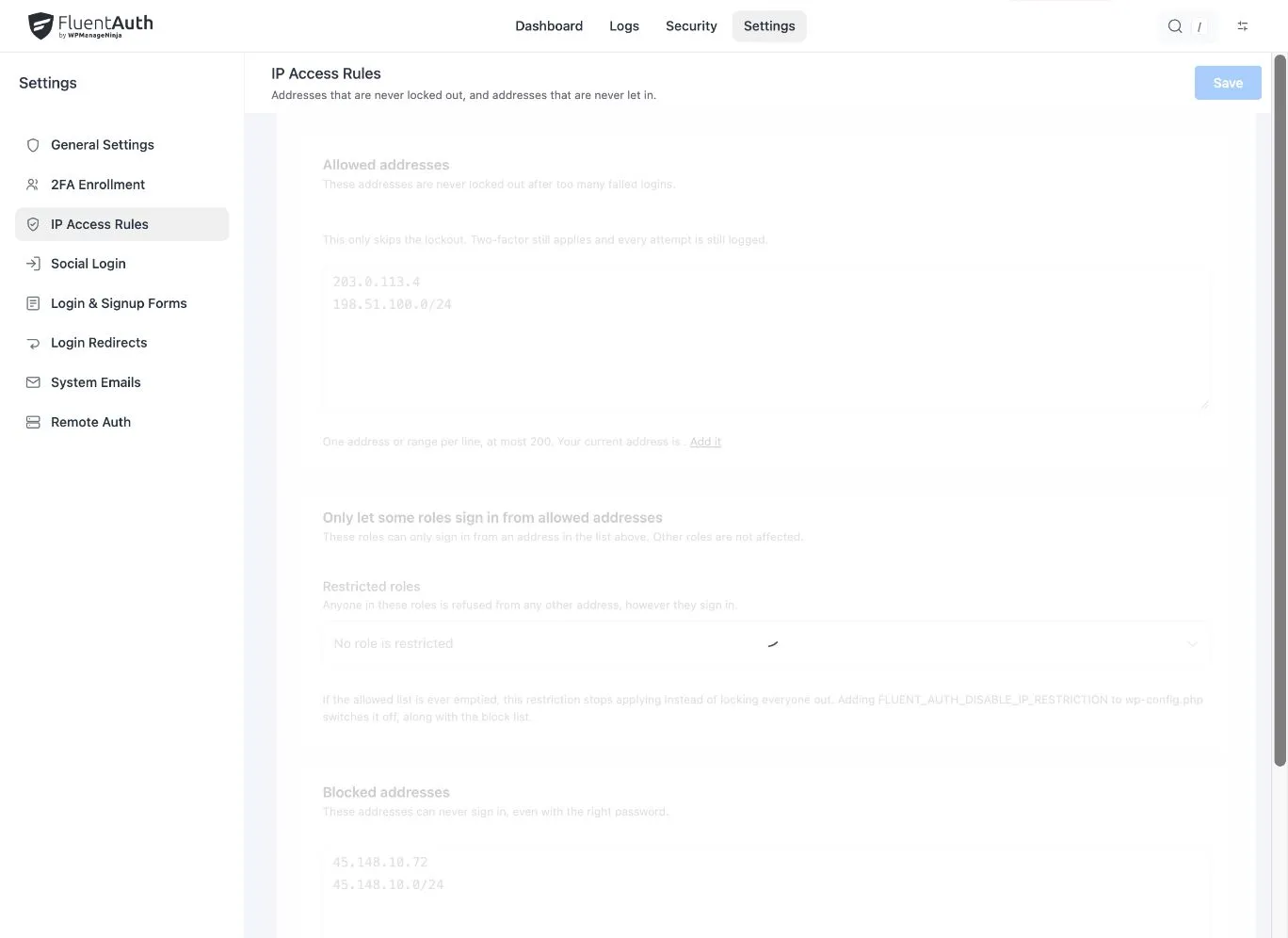
A login problem is easier to solve when you know which check refused access. An incorrect password, a temporary address block and a missing passkey can feel similar to the person outside the dashboard, but they need different responses.
Start by saving the exact error and the time it appeared. Use your normal site address or a trusted bookmark. If another administrator can still sign in, ask them to review the relevant activity rather than changing several security settings at once.
Match the message to the next step
| What you see | What to check | First response |
|---|---|---|
| Incorrect credentials | The account name and saved password | Use the normal password-reset process if needed |
| Too many attempts | The address and configured time window | Stop retrying and allow the window to pass |
| Address not permitted | A block-list or role restriction | Ask the maintainer to review the matching rule |
| Verification prompt | The account’s enrolled methods | Use a registered method or an unused recovery code |
| No verification email | Delivery, spam filtering and the account mailbox | Investigate mail delivery before disabling verification |
The screens shown here are from FluentAuth 3.0. Passkeys, authenticator apps, recovery codes and the expanded IP access rules were added in that release; email verification and login attempt limits have been available for longer.
When an address has reached the attempt limit
FluentAuth’s limit counts activity from an address. Repeated retries can keep recent attempts inside the configured window, so give the block time to expire. Coworkers sharing a connection may also share its public address.
An administrator using another permitted connection can inspect the activity log. Check the failures before deciding to add an exception. If many unrelated users appear under one address, review the proxy configuration.
When an explicit IP rule is responsible
A temporary attempt limit and an explicit address restriction are separate controls. Waiting does not correct a rule that excludes the administrator’s current network.
FluentAuth has a documented emergency IP-rule switch for a maintainer who controls the server configuration. It disables the block list and role restrictions while the rule is repaired. It does not disable the attempt limit. Remove the temporary override after correcting and testing the configuration.
When a device or recovery code is missing
Use an enrolled fallback first. Another administrator can help reset the affected method through the enrolment controls. Confirm the person’s identity through an established channel before removing their verification method.
If you are the only administrator and have lost every method, the two-factor troubleshooting guide describes recovery with server access. Deactivating the plugin temporarily removes its protections, so finish recovery, reactivate it and test verification promptly. This is a last-resort maintenance action, not a normal sign-in option.
Finish with a successful test
Keep the working session open while testing in another browser. Confirm that the intended account can sign in, reach the correct destination and use its fallback. Check the log, remove temporary overrides and explain the cause to anyone affected.
Record what solved the problem. The next person facing the same message should have a tested procedure, not a list of security controls to switch off.