A convincing WordPress login page can still be the wrong one
Help your team recognise suspicious sign-in requests and understand where passkeys, email and recovery fit.
An email arrives saying your WordPress account needs urgent attention. Its branding looks familiar and the button leads to a convincing login page. The important question is where the request came from and which site you are about to trust.
Build a response that your whole team can follow. A person should be able to pause and verify an unexpected request without feeling that they are delaying urgent maintenance.
Open a known route to your site
For an unexpected sign-in request, use your normal bookmark or independently navigate to the site’s known address. Check with the maintainer through an established contact route if the message claims they requested a change.
CISA’s phishing guidance recommends recognising suspicious messages, reporting them and avoiding their links or attachments. A polished message still deserves scrutiny when it asks for credentials or unexpected action.
For a WordPress team, a simple rule is useful: the maintainer will never need a user to send them a password, recovery code or authenticator secret in a message. Document how real account-support requests are handled.
Understand the role of a second check
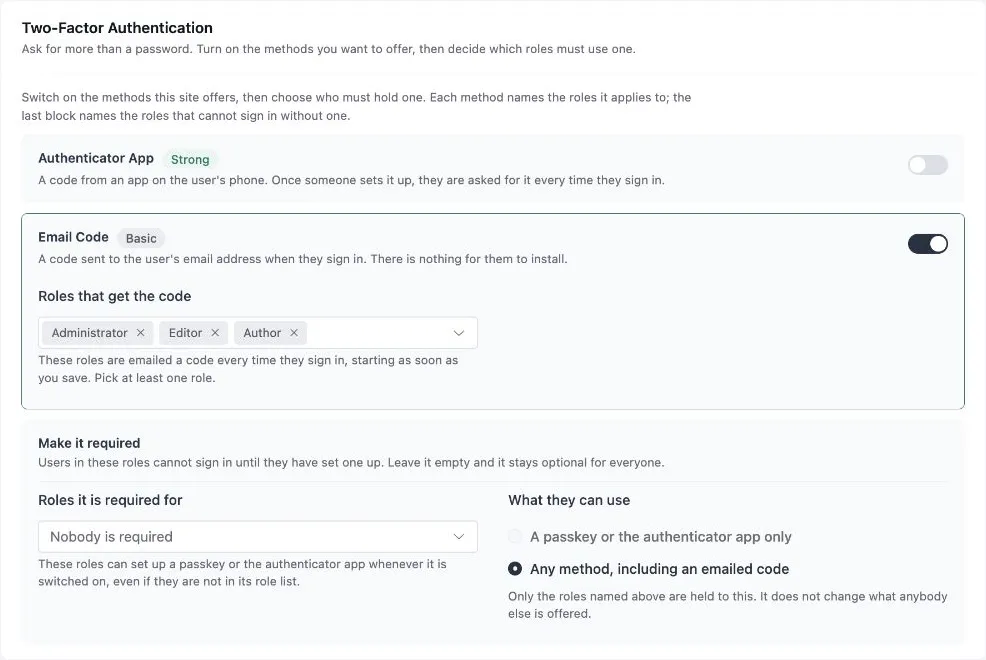
FluentAuth provides email verification, and 3.0 added passkeys and authenticator apps. These methods have different properties.
An emailed code depends on access to the account’s mailbox. A magic link also proves mailbox access, so pairing those two email steps does not create independent device verification. An authenticator app provides a device-based code, while a passkey uses a credential scoped to the site.
In FluentAuth, a passkey can sign you in directly without entering a username or password. It can also provide device verification after another sign-in method. A copied page on another domain cannot simply request the credential registered for your real site. Read the passkey explanation and setup guide for the verification flow and fallback requirements.
Prepare recovery before the stressful moment
A person who has lost their phone may be more likely to follow an unfamiliar recovery link. Give users a known support contact and help them prepare recovery methods before requiring device verification.
Store recovery codes somewhere accessible if the primary device is unavailable. Treat the codes as secrets, and do not paste them into a support conversation. If an administrator must reset someone’s method, establish the person’s identity through the agreed process first.
If someone already entered credentials
Ask what happened without blame. Record the site address they visited, the time and what information they supplied. Do not ask them to resend the secret as evidence.
Use a trusted route and device to secure the affected account. Review unfamiliar activity and whether the mailbox or other reused credentials are also affected. Session recovery can help end existing access while the maintainer investigates.
A security plugin does not make every message safe or clean an infected device. FluentAuth does not scan incoming email for phishing. Its role here is to strengthen supported sign-ins and give administrators tools for review and recovery.
Make the safe route easy to remember
Include the real login address and support process in team onboarding. Explain what a normal verification prompt looks like and practise the fallback with a test account. The best time to explain an unfamiliar screen is before someone is under pressure to get back into their work.