Limit WordPress login attempts without frustrating your users
Choose a sensible attempt limit, understand shared addresses and pair brute-force protection with stronger account verification.
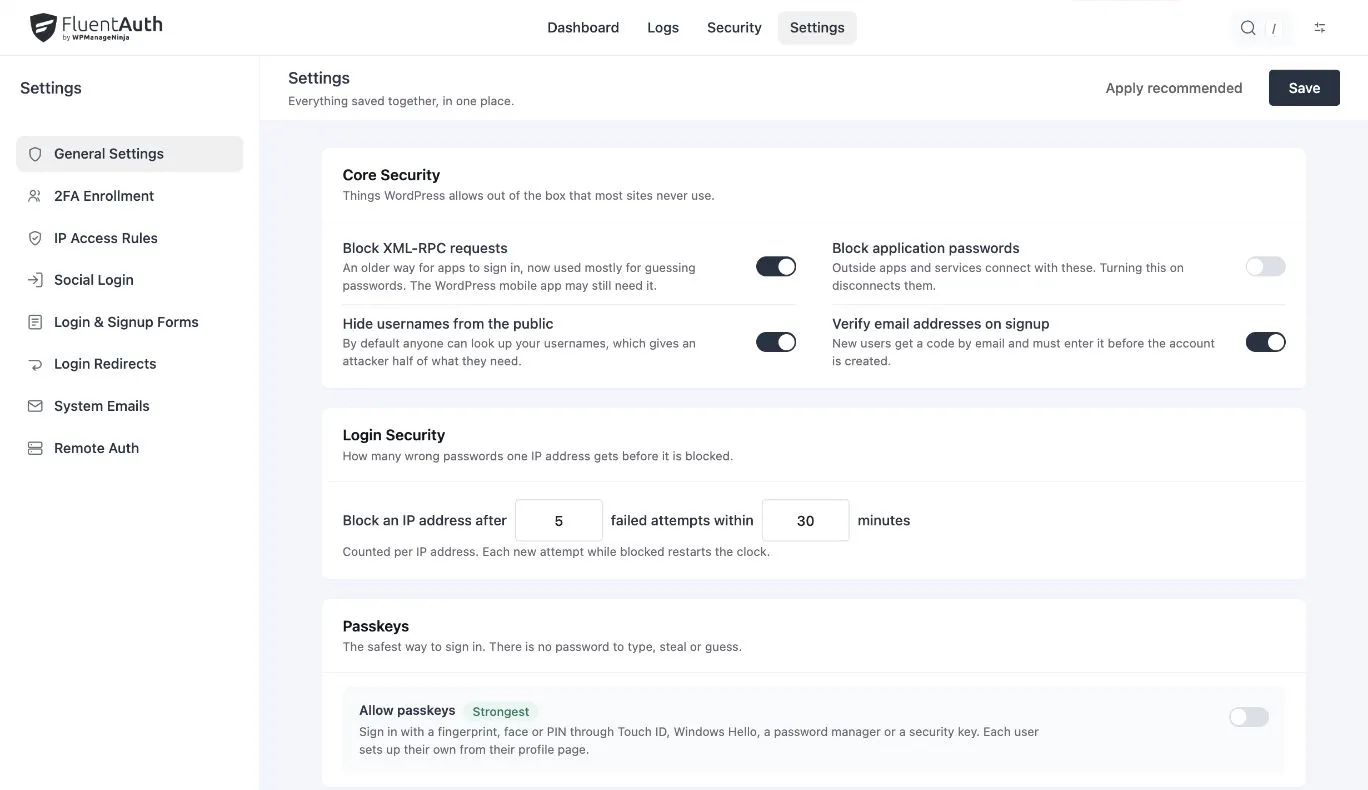
Your login form has two kinds of visitors to accommodate: people trying to reach their accounts, and automated clients that may keep trying passwords. A useful attempt limit slows repeated failures while giving a real person enough room to correct a mistake.
FluentAuth lets you choose a failed-attempt threshold and a time window. Together, those settings determine when an address is temporarily blocked. The goal is a policy you can explain and test, rather than the smallest number the settings will accept.
Understand the two numbers
Open FluentAuth → Settings → General Settings → Login Security. The defaults allow five failures from one address within a 30-minute window. Once that limit is reached, the next attempt from the address is refused before its password is checked.
The time window also determines how long recent attempts continue to count. Further attempts can keep a rolling window active, so do not tell a blocked user to repeatedly try again. A successful login clears the address’s failed-attempt count.
Start by reviewing those defaults against your audience. A small editorial team and a membership site with people returning once a year may need different amounts of help with forgotten passwords. Use the activity log to understand the failures before adjusting the policy.
Account for people who share a connection
An address is not an account. Coworkers, family members and visitors using the same network may share an outward-facing IP address. One person’s repeated failures can affect another person on that connection.
If several legitimate users report blocks together, check whether they share a network. Also verify how your host or proxy forwards visitor addresses. When every visitor appears to have the proxy’s address, a per-address limit can affect far more people than intended.
An attempt-limit exception may make sense for a particular office address, but it removes that limit for traffic using the address. It does not establish who is signing in and it does not exempt the account from two-factor authentication. Review IP access rules before adding an exception.
Keep a second check for valuable accounts
An address limit cannot stop every attack. Requests can come from many addresses, and a stolen password may work on the first attempt. Require appropriate verification for people who can install code, change settings or manage other users.
Email verification has been there from the start, and 3.0 added authenticator apps, passkeys and recovery codes. A device method gives administrators verification independent of their mailbox, with a recovery route prepared before rollout.
FluentAuth also includes an account-level challenge for repeated failures spread across addresses. When its threshold is reached, a correct password from an unfamiliar address can require an emailed code. This is different from permanently locking the account because someone else keeps targeting it. See the attempt-limit documentation for the current implementation and exceptions.
Test the experience before announcing it
Use a test account and keep a working administrator session available. If you test on a shared network, coordinate with the other people using it so an intentional block does not interrupt their work.
- Check that a normal login works and appears in the log.
- Submit incorrect credentials up to your configured threshold.
- Confirm that the following attempt is blocked and the log records the outcome.
- Stop retrying and check access after the window has elapsed.
- Test the account’s recovery and verification methods separately.
If another plugin also limits attempts, establish which one owns the policy. Two independent limits can show different messages and make troubleshooting confusing.
Use the limit as part of your login policy
A blocked attempt is a useful outcome: that attempt did not continue to password checking. It is not a malware scan, a firewall verdict or proof that the whole site is secure. Keep updates, backups and your host’s protections in place alongside login controls.
Explore login attempt protection, then use the first-day setup guide to connect it with verification and activity review.