FluentAuth 3.2: LinkedIn login, an Application Passwords screen and longer sign-ins
FluentAuth 3.2 adds LinkedIn login, shows every application password on your site, lets you choose how long people stay signed in, and shows what each built-in email says.
FluentAuth 3.2 adds LinkedIn login, a screen for application passwords, and settings for how long people stay signed in. It also fixes a long list of things you told us about. Everything here is in the $0 plugin. Update from Plugins > Installed Plugins, or get it from the plugin page.
What is new in FluentAuth 3.2?
| New or changed in 3.2 | What it helps you do |
|---|---|
| LinkedIn login | Let people sign in or sign up with their LinkedIn account |
| Application Passwords screen | See every application password on your site and revoke the ones nobody uses |
| Staying Signed In | Choose how many days people stay signed in, with and without Remember Me |
| Built-in email previews | See what each WordPress and FluentAuth email says before you change it |
| Editable signup code email | Change the email that carries the signup verification code |
| About page | Find help, the people behind FluentAuth, and our other plugins in one place |
Login with LinkedIn
LinkedIn is now the fourth social login provider, next to Google, GitHub and Facebook. It suits sites for professionals: B2B stores, job boards, member directories and communities.
Turn it on under Settings > Social Login. It needs an app in the LinkedIn Developer Portal, and our LinkedIn guide walks you through it step by step.
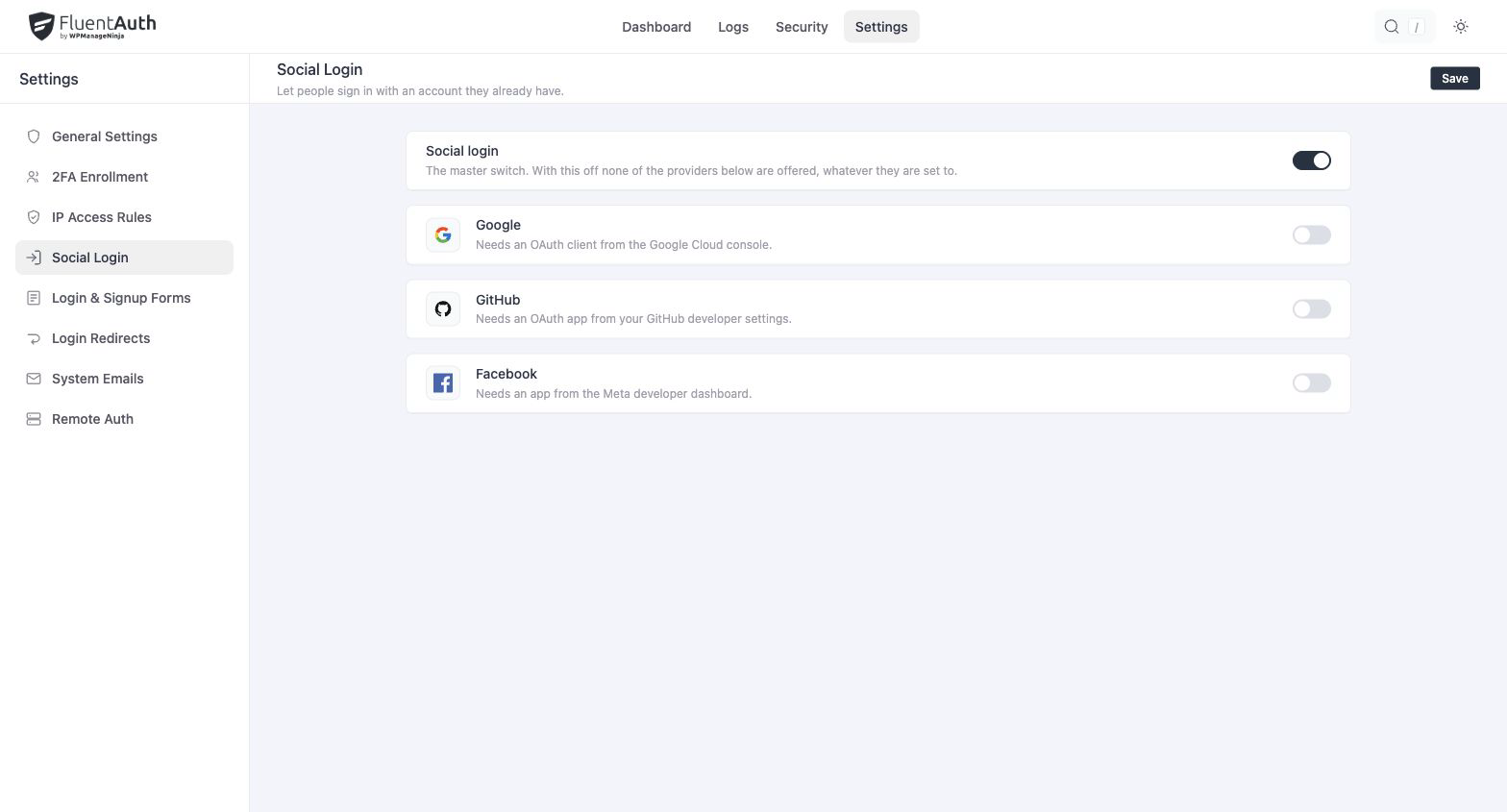
FluentAuth matches a social login to an account by email address, so it only accepts an address that LinkedIn has verified. Someone whose LinkedIn email is not verified sees a clear message and is not signed in.
See every application password on your site
Application passwords let apps and services sign in as one of your users: the WordPress mobile app, Zapier, a backup tool. WordPress shows each user only their own, on their profile. Nobody could see them all at once, or tell which ones an old integration left behind.
The new Settings > Application Passwords screen lists every one on your site, with its user, when it was created, when it was last used and from which address.
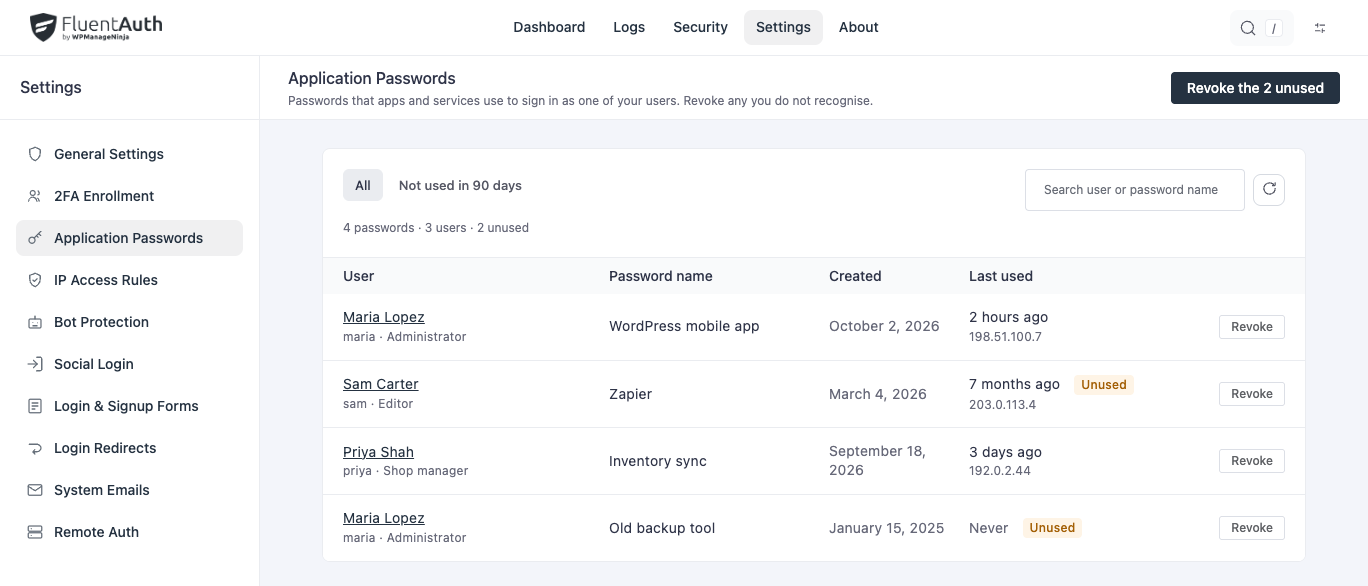
- Not used in 90 days shows the passwords nobody has used for three months, and ones that were never used once they are that old.
- Revoke removes one, and Revoke the unused removes all the unused ones at once. Both ask first, and both are written to the activity log.
- The security checklist now points out passwords nobody has used for 90 days.
You only see the passwords of people you are allowed to edit, the same rule WordPress uses on its own screens.
Choose how long people stay signed in
WordPress signs people out after two days, or after 14 if they tick Remember Me. Many of you asked to change that. The new Staying Signed In card under Settings > General Settings lets you pick both numbers.
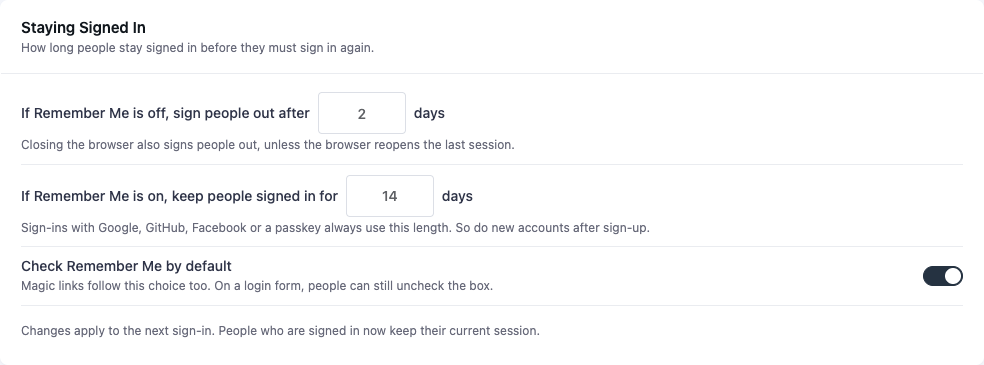
Remember Me is now ticked by default on every login form. People can still untick it. Magic links follow the same choice, and sign-ins through a social account or a passkey use the Remember Me length. Changes apply from the next sign-in.
See what each email says before you change it
Under Settings > System Emails, each email can stay Built-in or use Your own text. Before, you could not see what Built-in actually sent. Now the editor shows it, filled in with your own details.
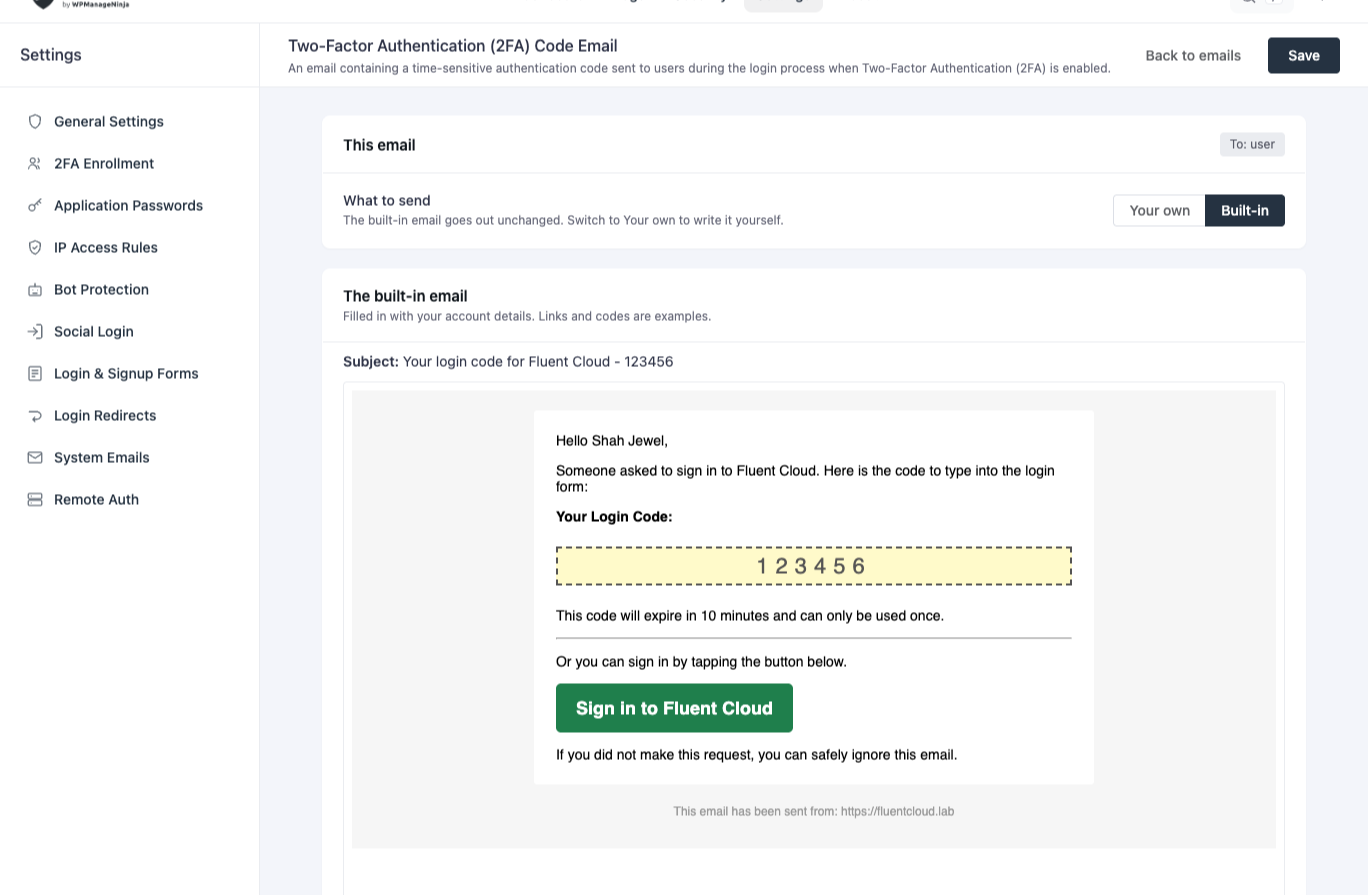
WordPress’s own emails, such as the password reset, are shown as the plain text WordPress sends. FluentAuth’s emails, such as the two-factor code and the magic link, are shown as they arrive. More in the system emails guide.
Two more email changes:
- The signup code email can be edited. The email with the code people type to finish signing up is now in the list, under Signup Verification Code Email.
- No more silent sign-ups. If you had customized the New User Registration email, people who signed up through a FluentAuth form or a social account got no email at all. They now get a welcome email.
An About page
The new About item in the top bar collects the links you need when you are stuck: the documentation, our community, GitHub, and a place to leave a review. It also shows who builds FluentAuth, and lets you install our other plugins, such as FluentSMTP, in one click.
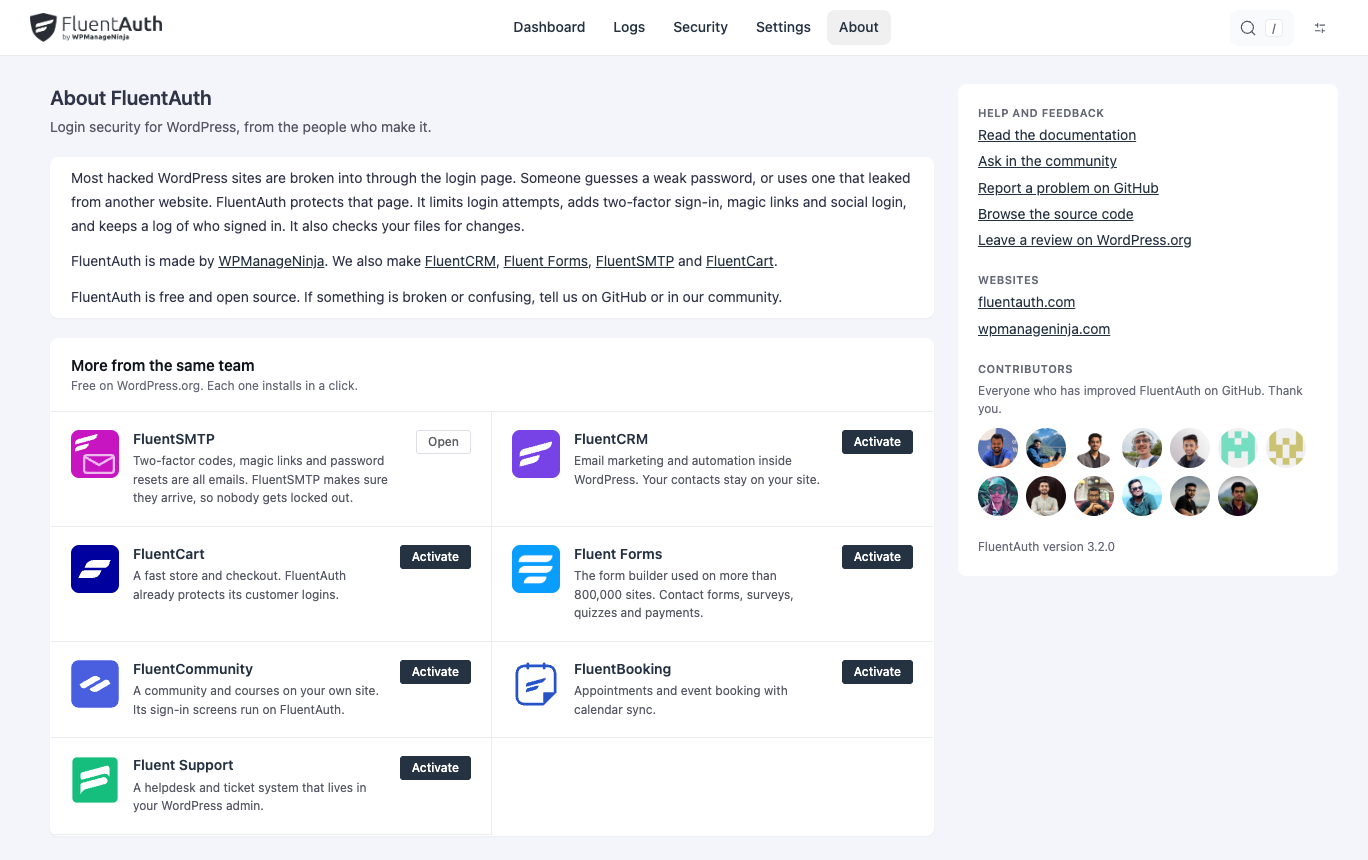
FluentSMTP is first on that list for a reason. Two-factor codes, magic links and password resets are all emails. If they do not arrive, people get locked out.
FluentAuth in your language
- Security emails are translated. Login alerts, blocked login alerts and the summary report now use your site’s language, and show readable role and sign-in method names.
- The admin follows your profile language. If your profile language differs from the site’s, FluentAuth’s screens and messages now use yours.
- Plural counts read correctly in German, French and other languages.
Smaller changes and fixes
- Application password sign-ins have their own attempt limit, and the blocked login email says which one was refused.
- If a double-clicked login sends two email codes, the error now says to use the newest email.
- Cancelling on GitHub, Facebook or LinkedIn brings you back to the login page.
- GitHub login works with GitHub apps that match the redirect URL exactly.
- Facebook login uses the current version of Facebook’s API.
- The customized New User Registration email now reaches users added under Users > Add New, by FluentCRM and by other plugins.
- Password Change Notification set to Nothing now also stops the admin email on WooCommerce password resets.
- Magic login follows your Login Redirects rules.
- Shortcode redirects such as
redirect_to="/portal/"work, andredirect_to="self"stays on the page in a subdirectory install. - “Hide banner” in the login customizer now works on every login screen, and the password reset email no longer says “Hi ,”.
- Numbers in text boxes are readable in dark mode.
For developers
fluent_auth/login_page_urlsends visits towp-login.phpto a login page on your site.fluent_auth/login_designer_actionslets another plugin’swp-login.phpscreen use the login designer.- See hooks and filters for the full list.
Security
This release also hardens login replies, two-factor method switching, server-mode sign-in
links, the [fluent_auth] shortcode, admin error messages and the quarantine folder.
Update now
FluentAuth 3.2 is available on WordPress.org. Update from your Plugins screen, then open Settings > Application Passwords to see what is signing in to your site.